Since March 2013, the AFIP (Federal Administration of Public Revenues) of Argentina, together with NIC Argentina, has implemented the request to incorporate a QR Code provided by the AFIP to all natural or legal persons. Although it sounds like an injunction, it is a measure to improve the oversight and control of taxpayers.
The following is an updated tutorial to learn how to obtain the QR code for your website in detailed steps.
Enter the AFIP website
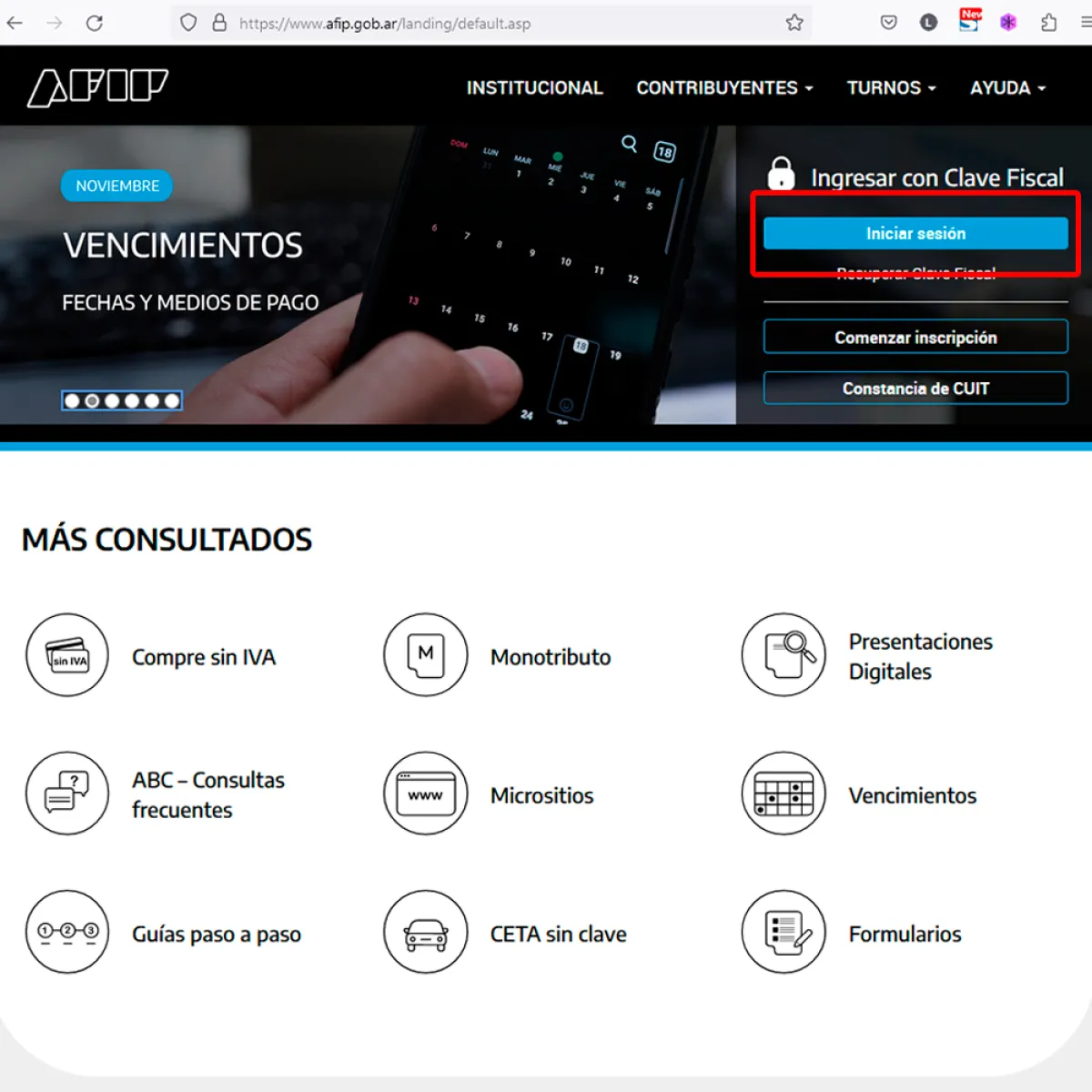
Access the official AFIP website through your web browser.
To enter the AFIP website click on the following link: https://www.afip.gob.ar/
Then click on the upper right button "Start Session"
AFIP Login

1.1 Enter your CUIT
In the pop-up window, enter the 11 digits of your CUIT, no dashes or periods, just numbers and click the Next
buttonAFIP Login

1.2 Enter Tax Code
You must enter your Tax Code that accompanies your CUIT and click on the Enter button.
If you do not know your tax code, consult your Accountant.
Type of Fiscal Responsibility
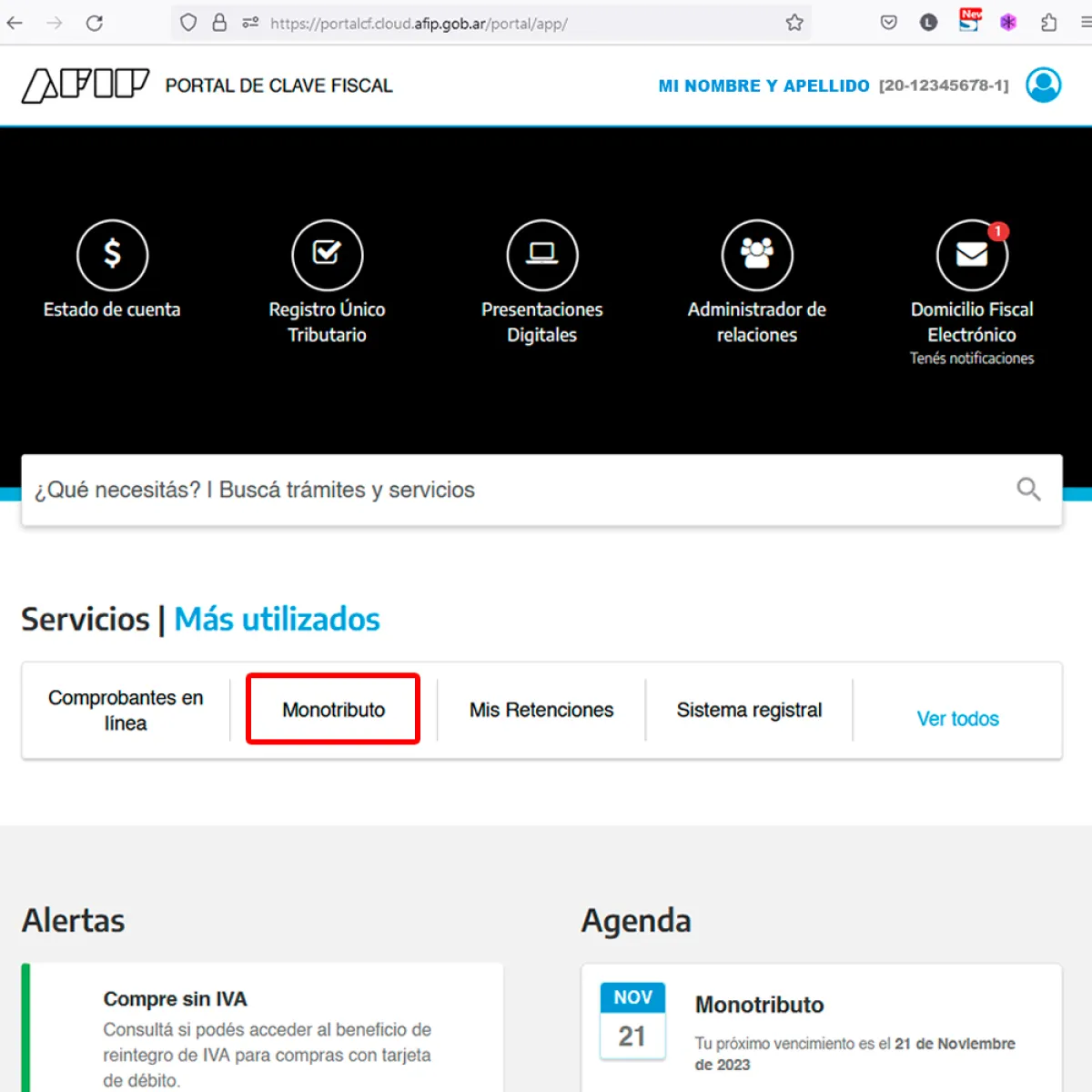
Once logged in, choose the type of tax liability that applies to your situation.
In the Most Used Services section, we will select the Type of Fiscal Responsibility, in this case, as shown in the model image, we will select Monotributo.
Choose the Natural Person
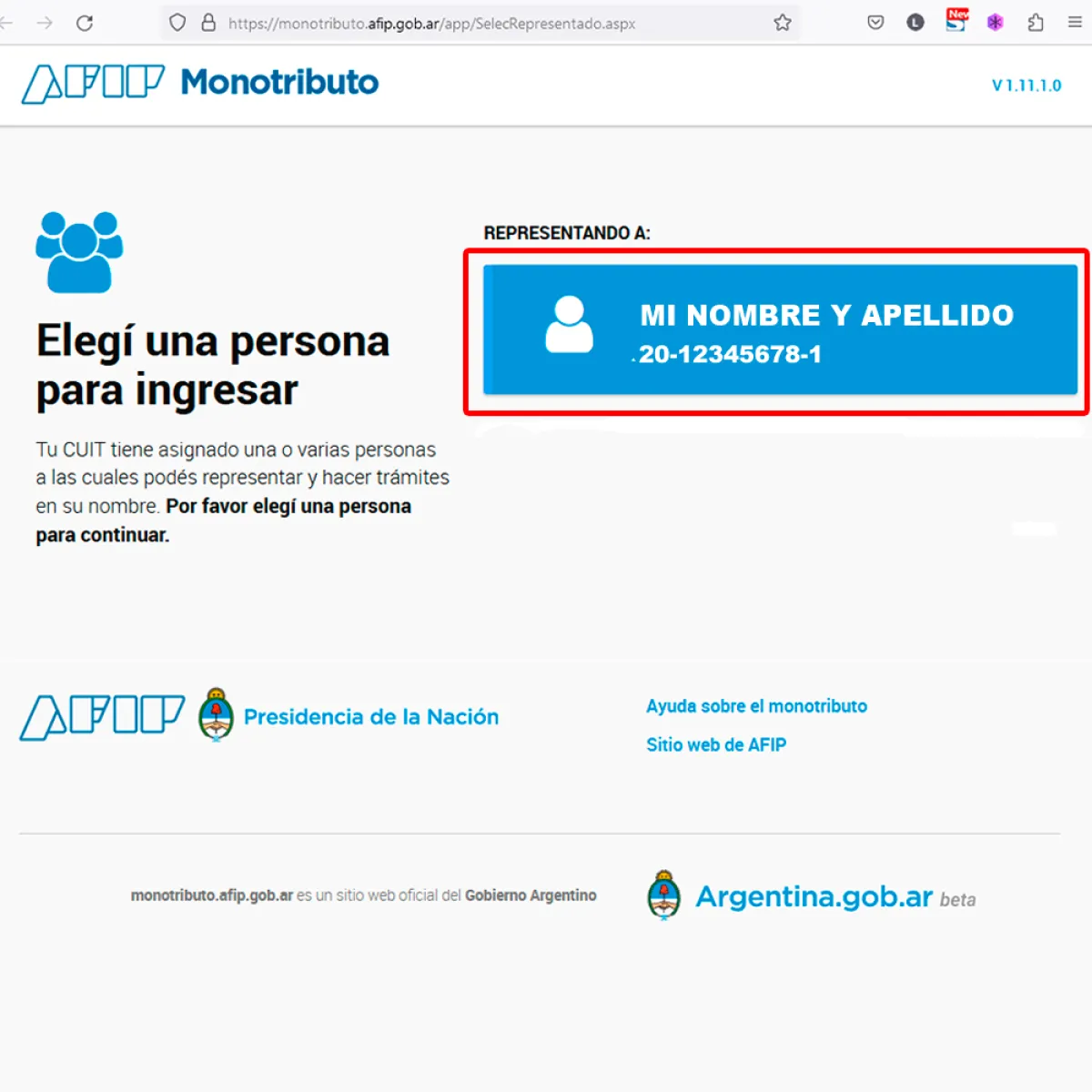
You must select the Natural Person
Once you have chosen your tax responsibility, a screen will appear in which you must choose the person you will represent. Normally it is a button with your Full Name and your CUIT. Click on the button to continue
Fiscal Responsibility Options
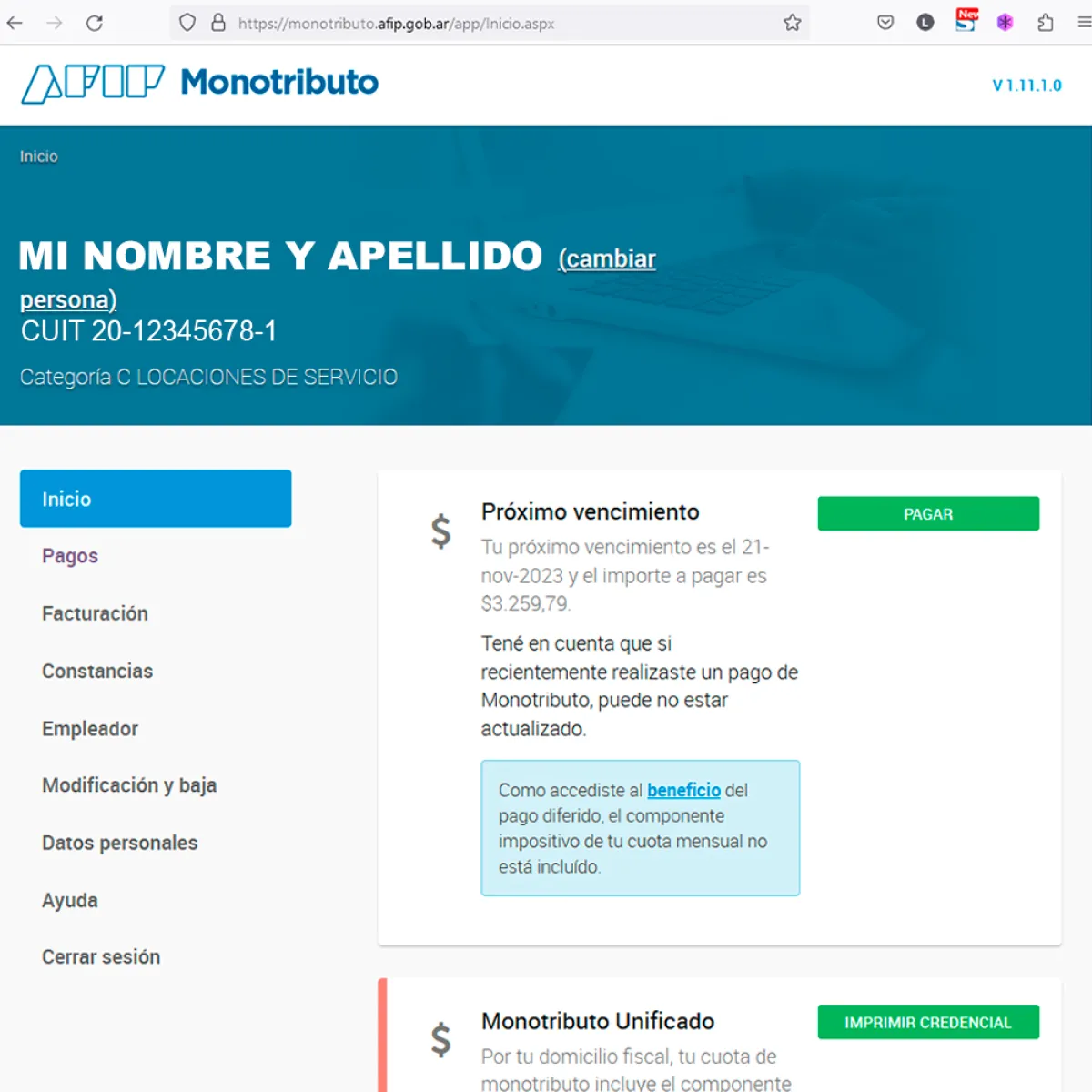
Once the Natural Person is selected, you will be redirected to a new screen.
This screen contains the Fiscal Responsibility Options, in this case Monotributo, as shown in the example image.
On the left side we will look for the option Constancias
Certificates
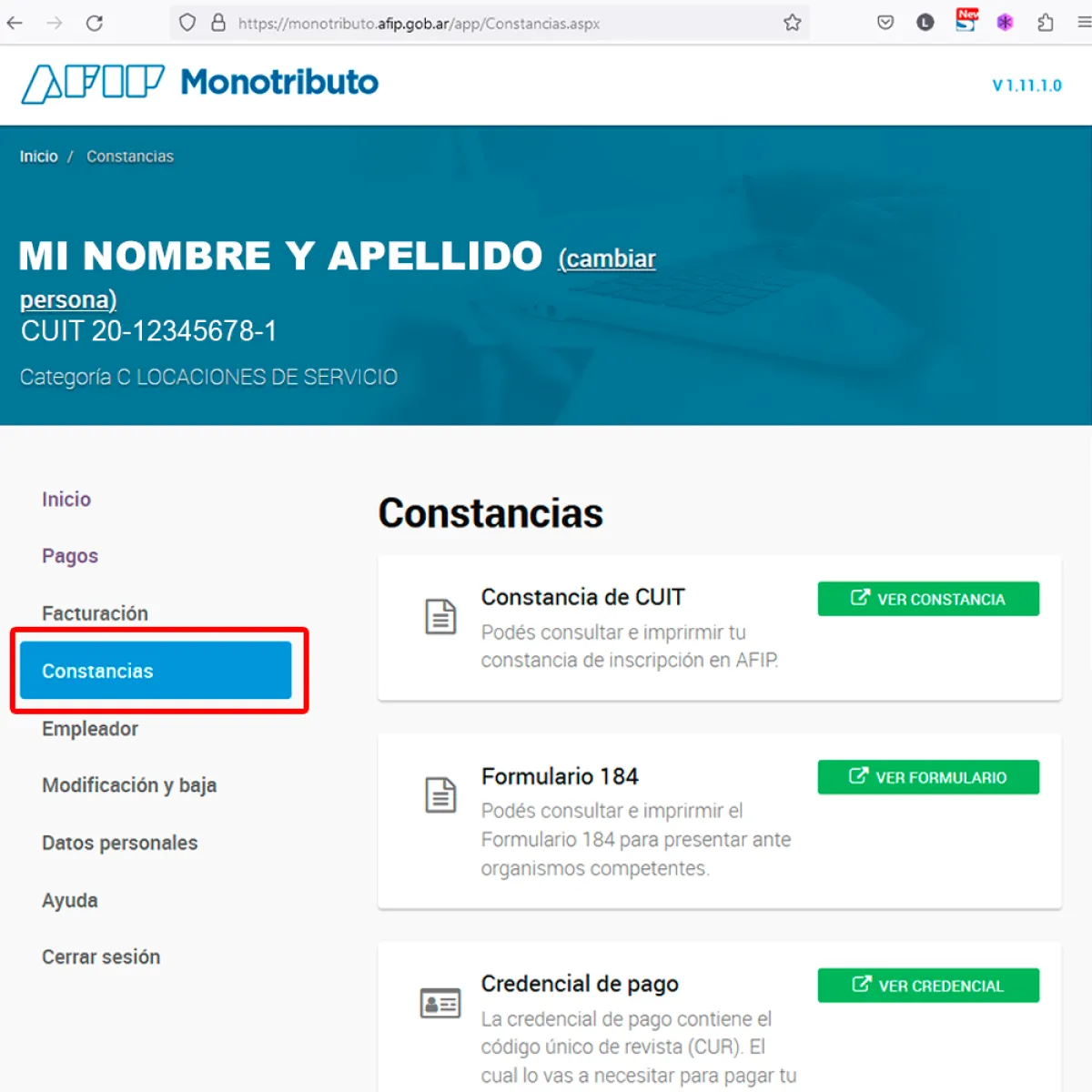
Evidence of Fiscal Responsibility
In the left panel click on the Records button.
Certificate Options
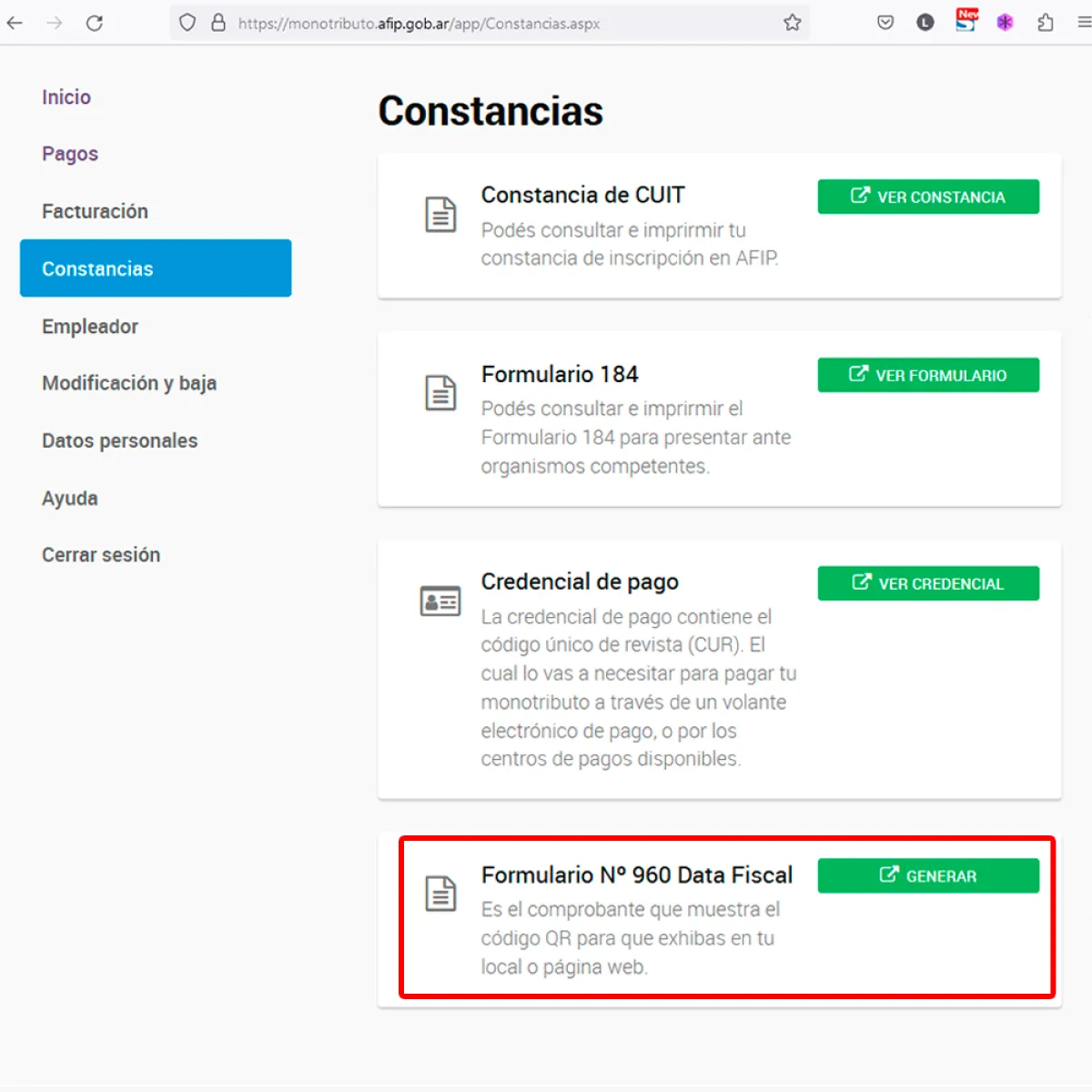
The record options will appear in the right panel of the screen.
Choose Form F960 Fiscal Data. A button will appear that says Generate, click on it.
Generation of F960 for your website
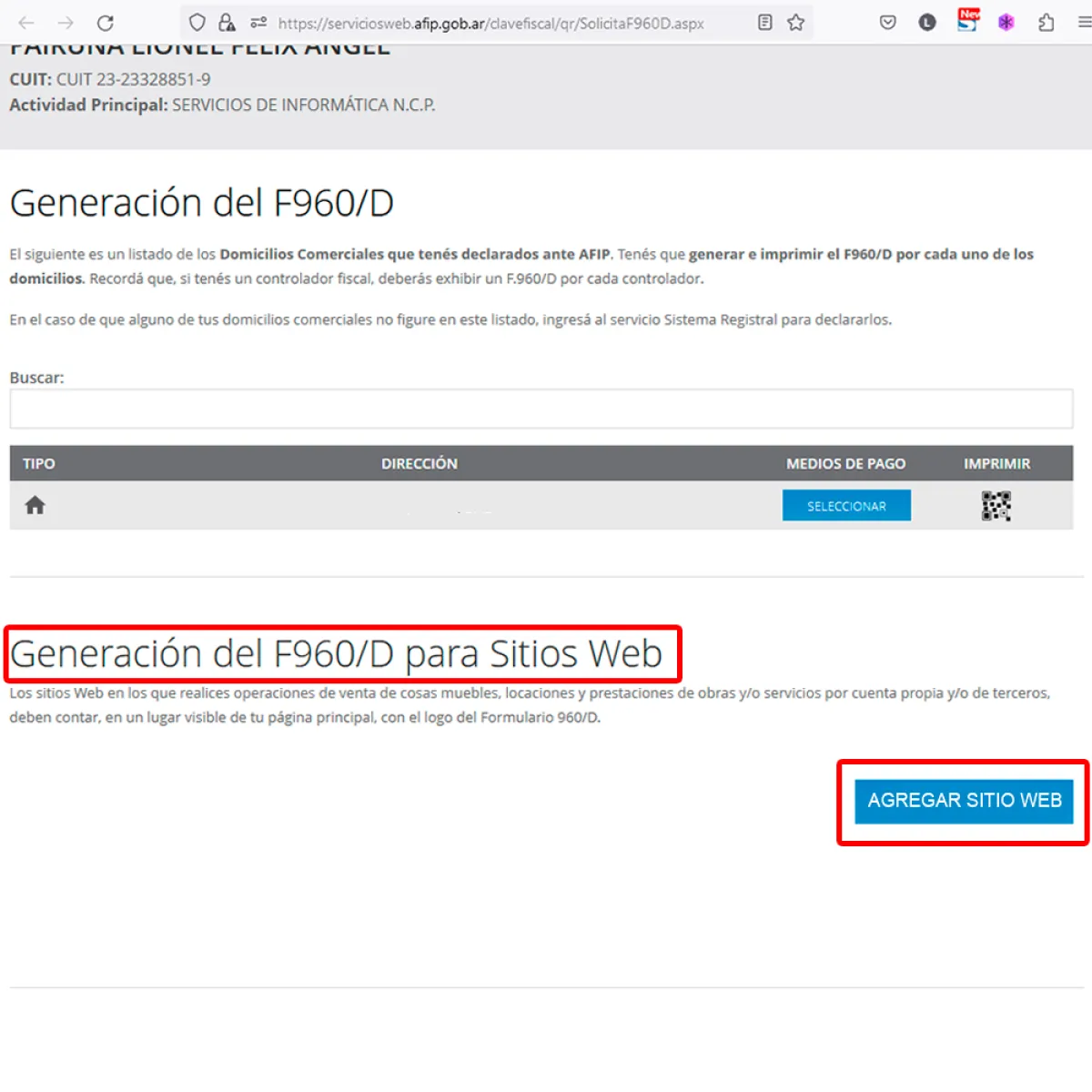
In the new section, you will find a section called F960 Generation for your website
Click on the ADD WEBSITE button.
Add your website URL
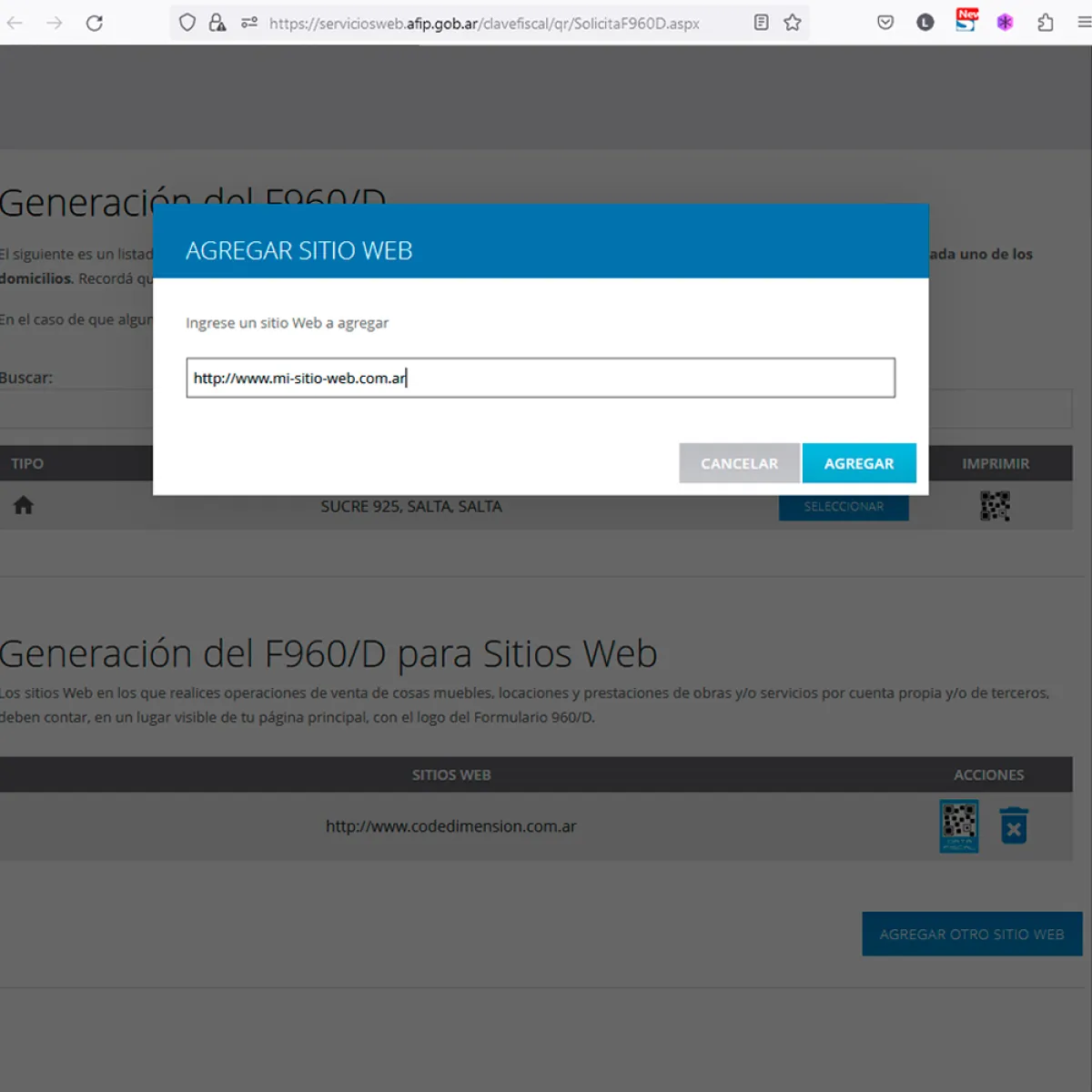
Once you clicked on ADD WEBSITE, a floating window will appear.
Enter the URL of your website, prefixing it with HTTP:// as shown in the example image. Then click the Add button.
Website added
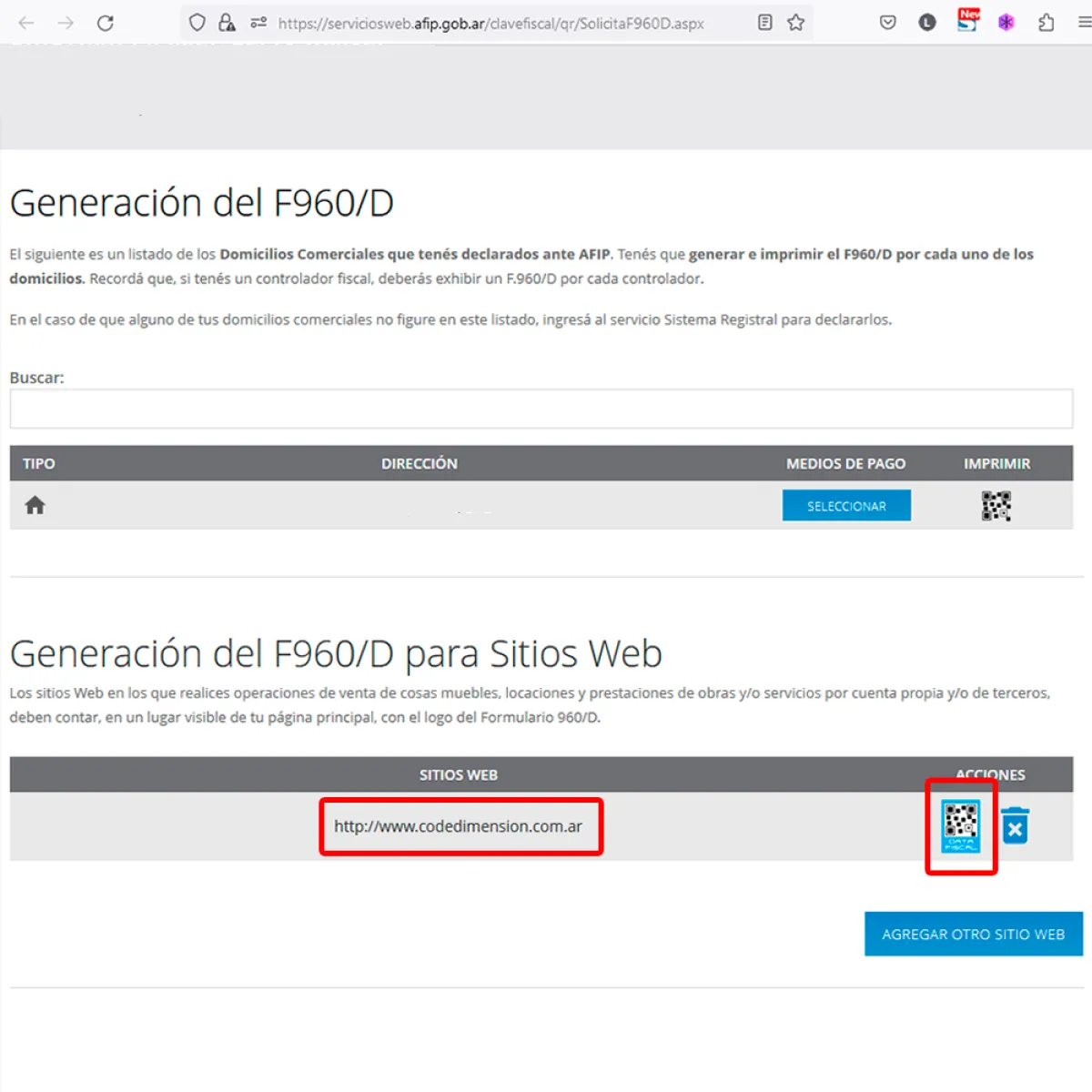
Once the Add is confirmed, you will notice that your website is listed.
In the right sector of your website, there are two icons.
The icon on the right (trash can) is to delete the website in case you have made a mistake.
Click on the light blue icon on the left with a QR code and the legend DATA FISCAL, to obtain the Script Code.
Final Step: Obtain QR script code
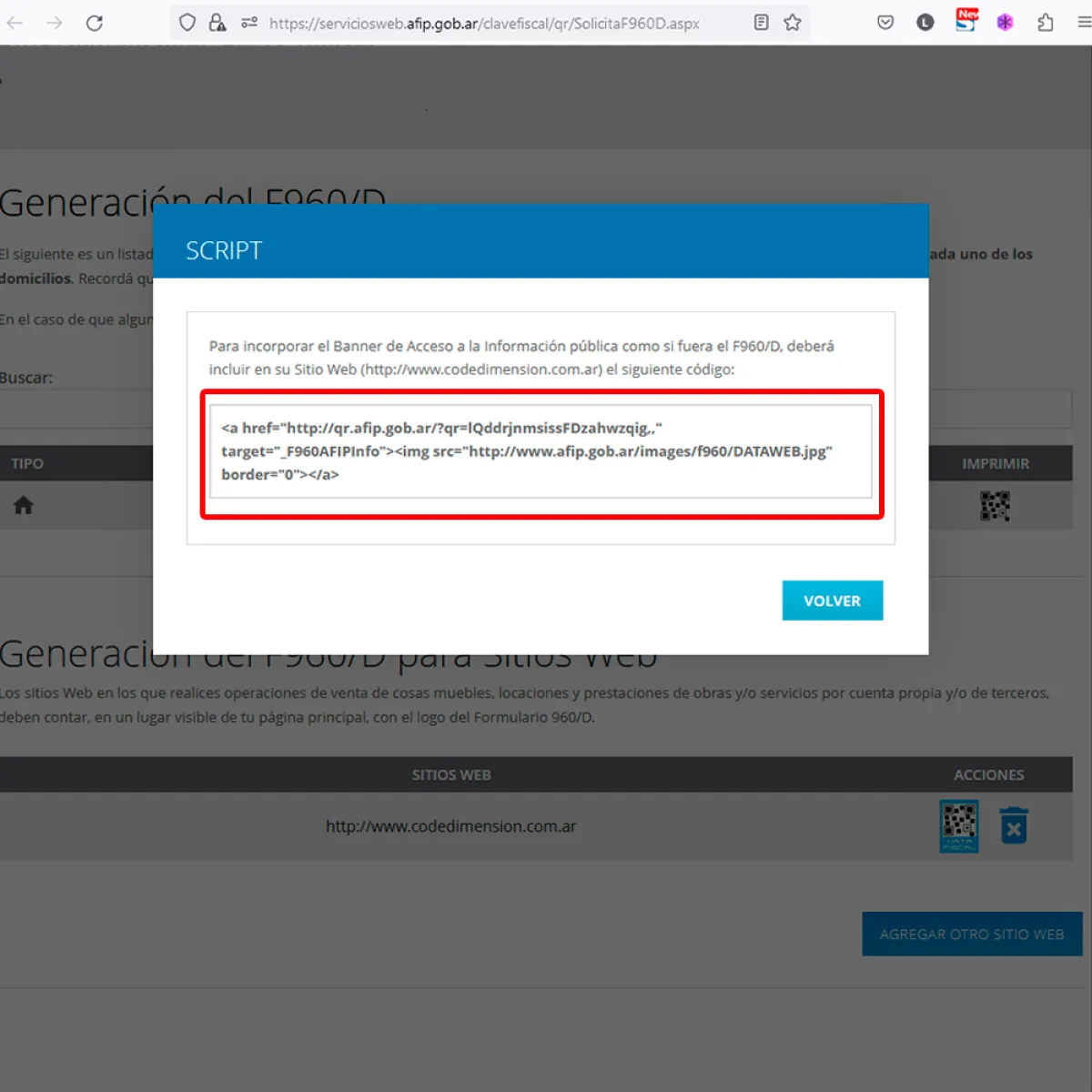
A new floating window will open showing the code.
Select it and copy it by pressing the CTRL+C keys. Send it by email or WhatsApp to your web designer to put it on your site.
With this, you will have completed the process. The appearance of the button on your website will depend on the work of your webmaster.
If after following this tutorial you are unable to obtain the code, we recommend that you contact the AFIP directly for further assistance.
Updated on: 05/11/2023 00:00:00