The tremendous devaluation that has hit Argentina in recent years has encouraged many citizens to cover themselves by buying dollars, some as savings, others to prevent the little surplus they have left from being devalued.
One of the many adjustment measures by the Argentine Government is the famous dollar stocks, which included an additional tax of 35% on the purchase of foreign currency, deductible on account of Profits and/or Personal Assets for those taxpayers who already pay the tax such as the Registered Responsible Persons.
The problem is that the Argentine government did not discriminate against those who pay the income tax, it was easier to collect it from everyone directly, so they invented a kind of refund of these withholdings through the AFIP portal.
Clarification
It is worth clarifying that the money can only be recovered from the perceptions of previous years, not the current year. That is to say that if we are currently in the year 2024, we will be able to recover the withholdings from the year 2023 backwards, another genius, they work with your money for a year, and when they return it to you, it is devalued by more than 100%, anyway, I recommend controlling because you may be surprised at the money you can recover.
This tutorial will show you step by step how to recover those perceptions.
Enter the AFIP website
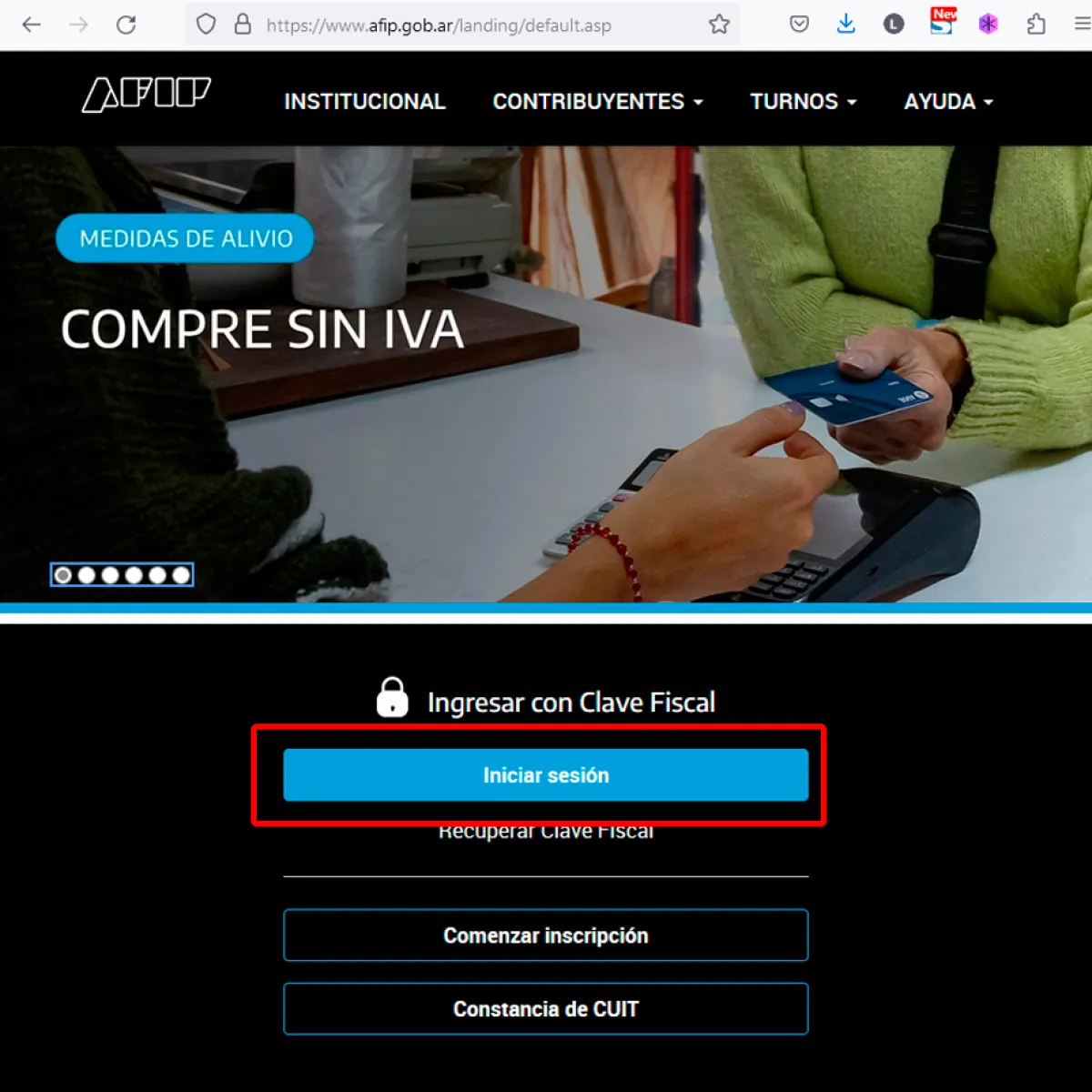
Access the official AFIP website through your web browser.
To enter the AFIP website click on the following link: https://www.afip.gob.ar/
Then click on the upper right button "Start Session"
AFIP Login

Enter your CUIT
In the pop-up window, enter the 11 digits of your CUIT, no dashes or periods, just numbers and click the Next
buttonEnter your Tax Code
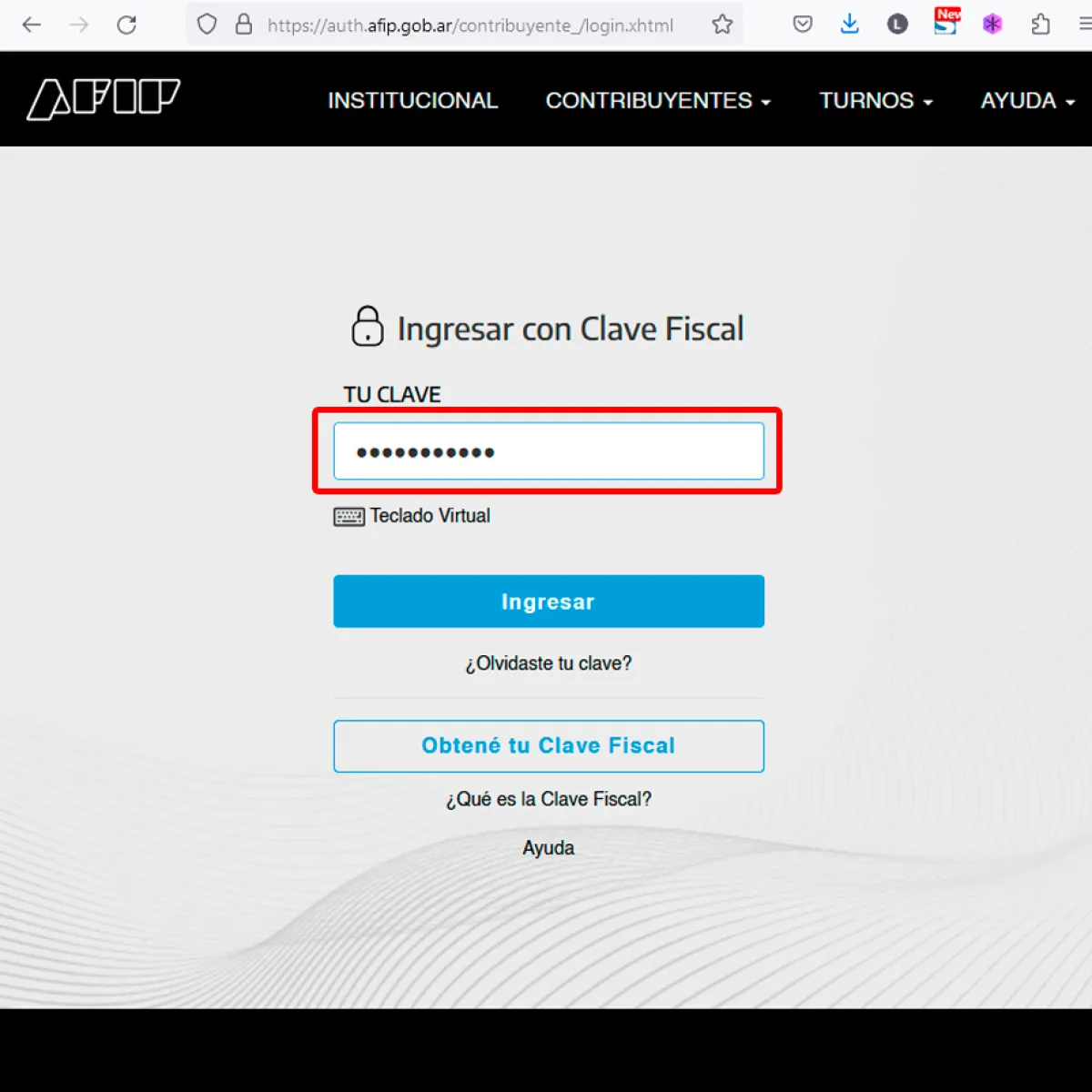
Enter Tax Code
You must enter your Tax Code that accompanies your CUIT and click on the Enter button.
If you do not know your tax code, consult your Accountant.
Procedures Search
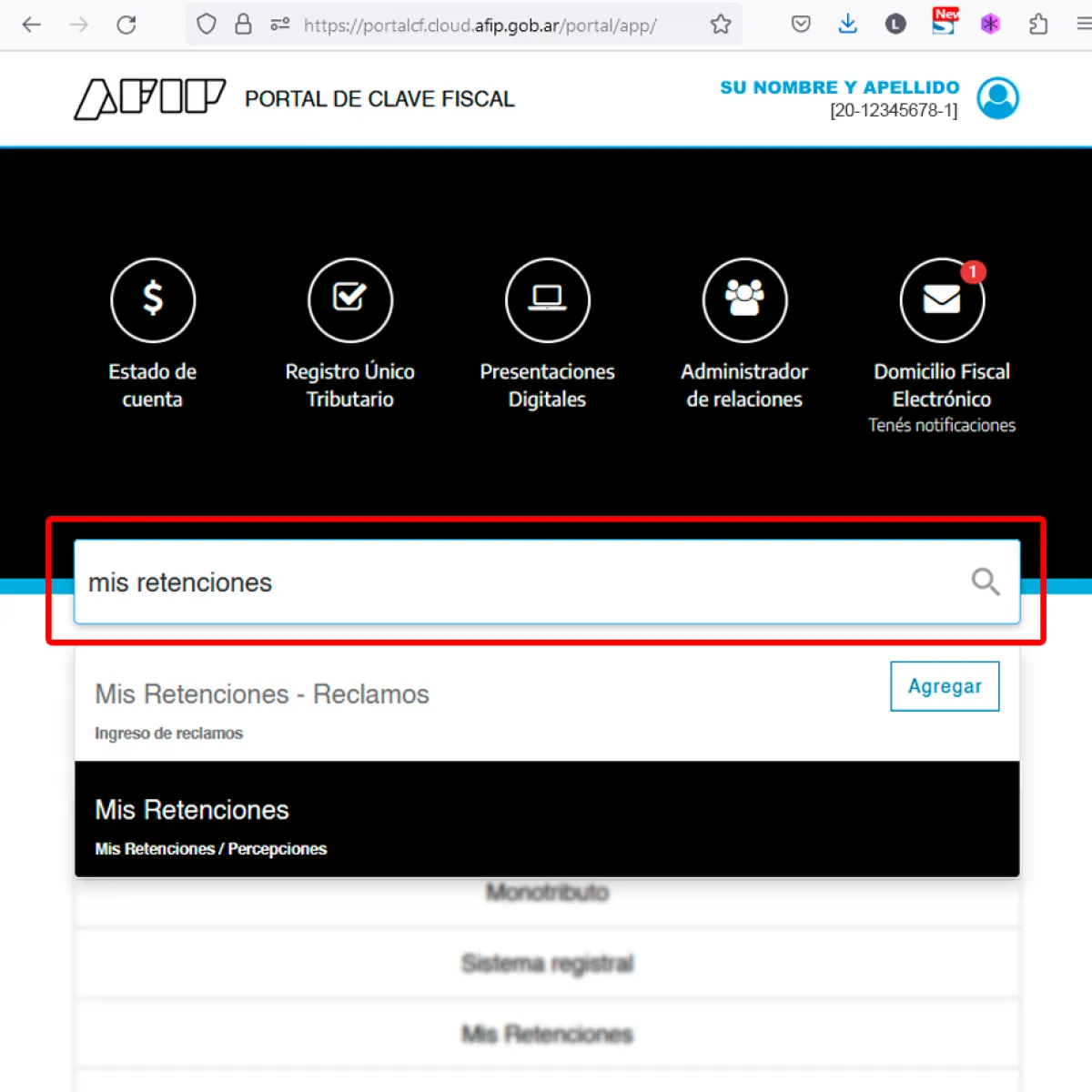
Once entered, go to the word search engine.
And in the field, write "my withholdings", you will notice that a list with procedures is displayed, choose the item "My Withholdings" from the list. The system will refer you to another screen.
Form to consult Perceptions received
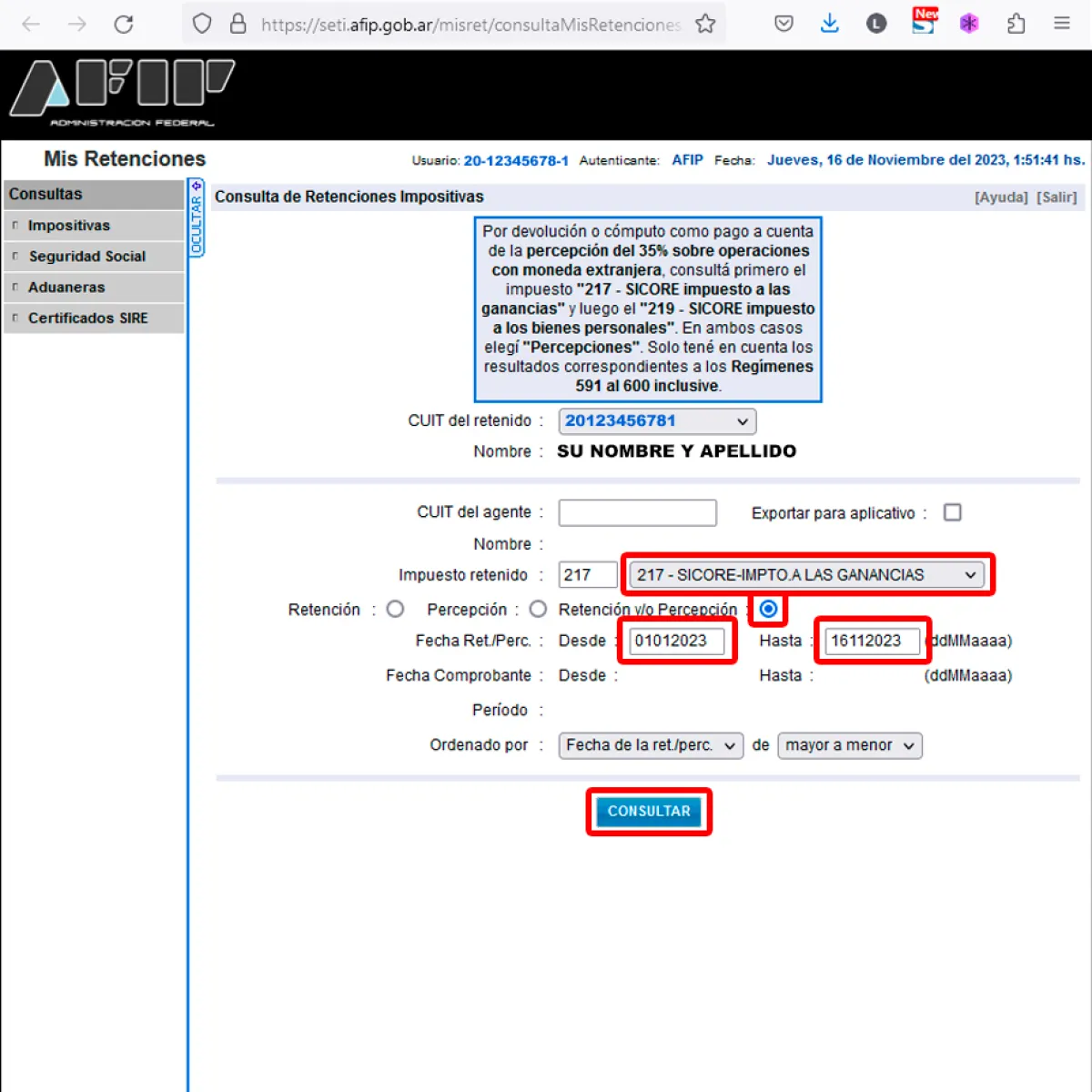
In this form you must complete the data to obtain the list of perceptions that were made to you.
By default, your CUIT and your name are already selected.
In the Withholding Tax field, choose from the list item 217, called 217 - Sicore-IMPTO ON PROFITS.
In the Date/Ret./Per field, choose the date range from/to to consult
Finally, click on the Consult button.
List of Perceptions
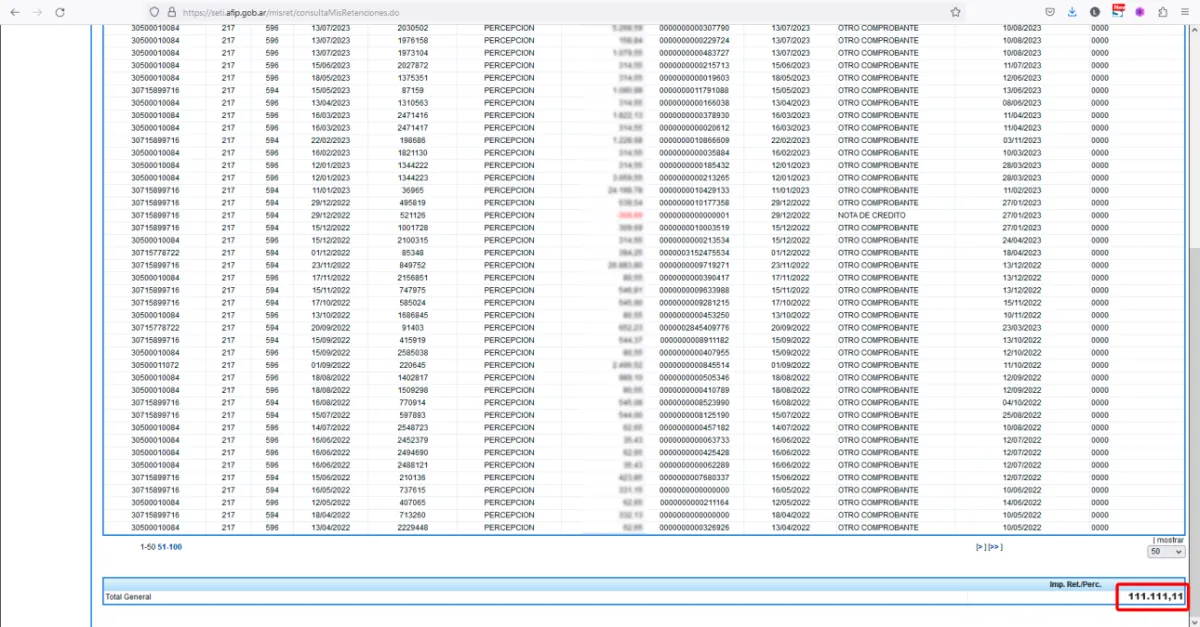
Once the list is completed, you will obtain all the insights that have been made to you.
In the image you can see an approximate model of how it is displayed.
At the end of the list, the total sum of the perceptions is shown. Save this list in another browser tab or copy it to an excel to know which months you should claim the refund.
Once you have saved a copy of the list, exit the screen and return to the procedures search engine.
Procedures Search
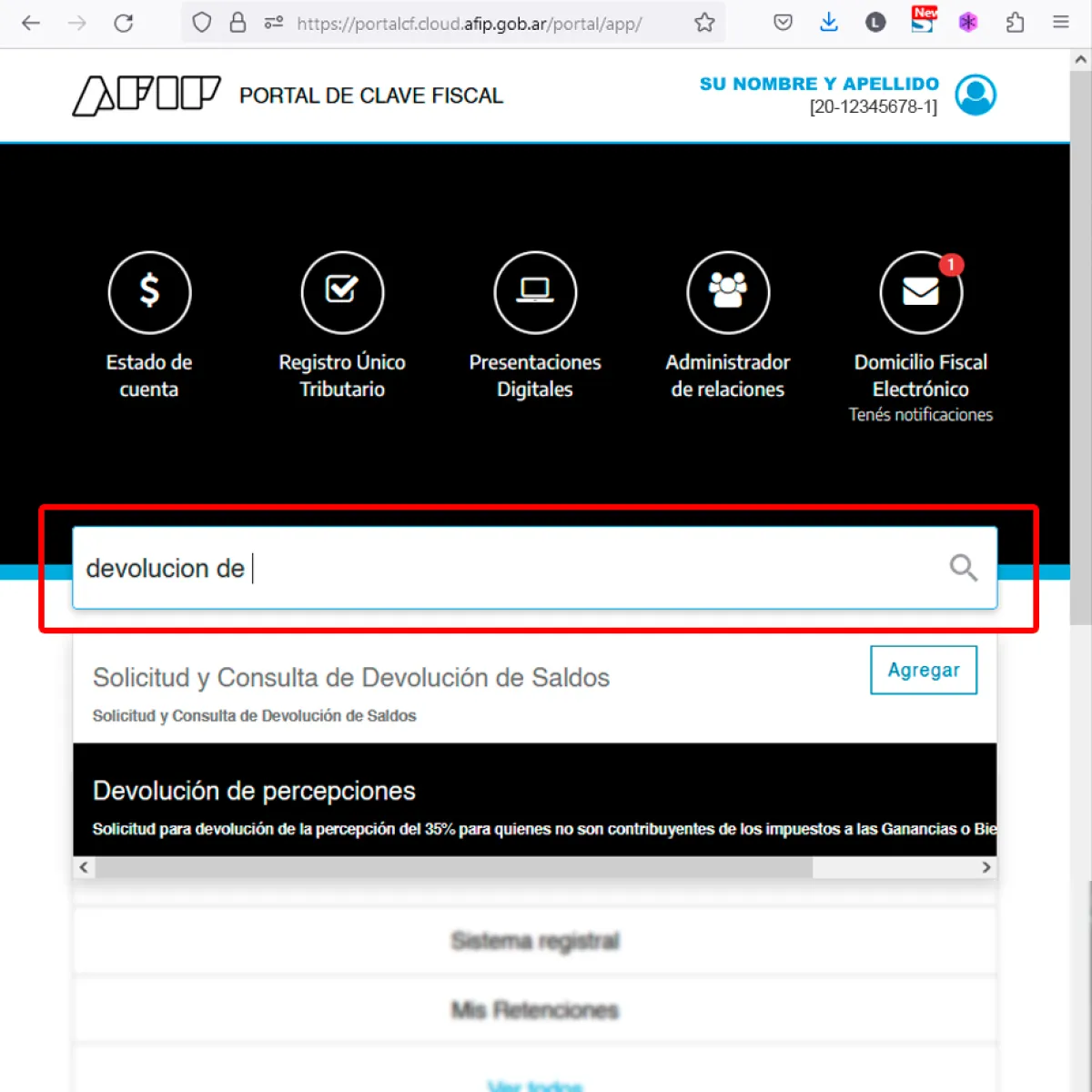
Again in the search engine type "return of perceptions"
You will notice that a list is displayed, choose the item Return of Perceptions.
Perceptions Claim Form
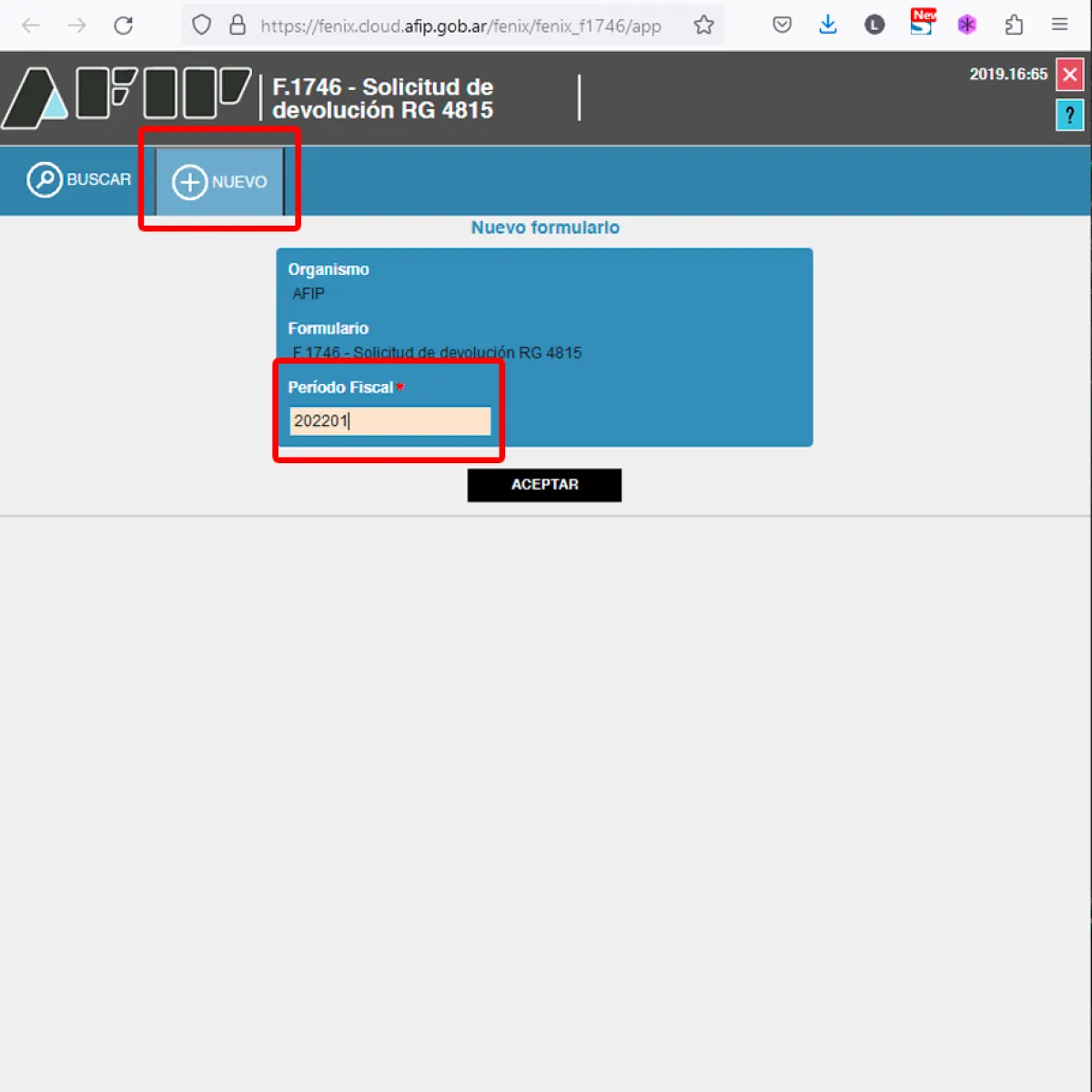
This form will allow you to claim payments month by month.
First click on the NEW button. You will notice that the form changes. The form will be similar to the one in the example image.
Look at the list of perceptions obtained in point 6 of this tutorial, the oldest month and year in which perceptions appear.
Complete the period, taking into account that the format is YYYYMM, that is 4 digits for the year and 2 digits for the month. For example, if you wanted to claim the month January of the year 2022, you should write in the period field: 202201.
Then click on the ACCEPT button
Note:From this step and until step 10, you must repeat it for each month and year in which you have perceptions and want the return of the same
Return Request
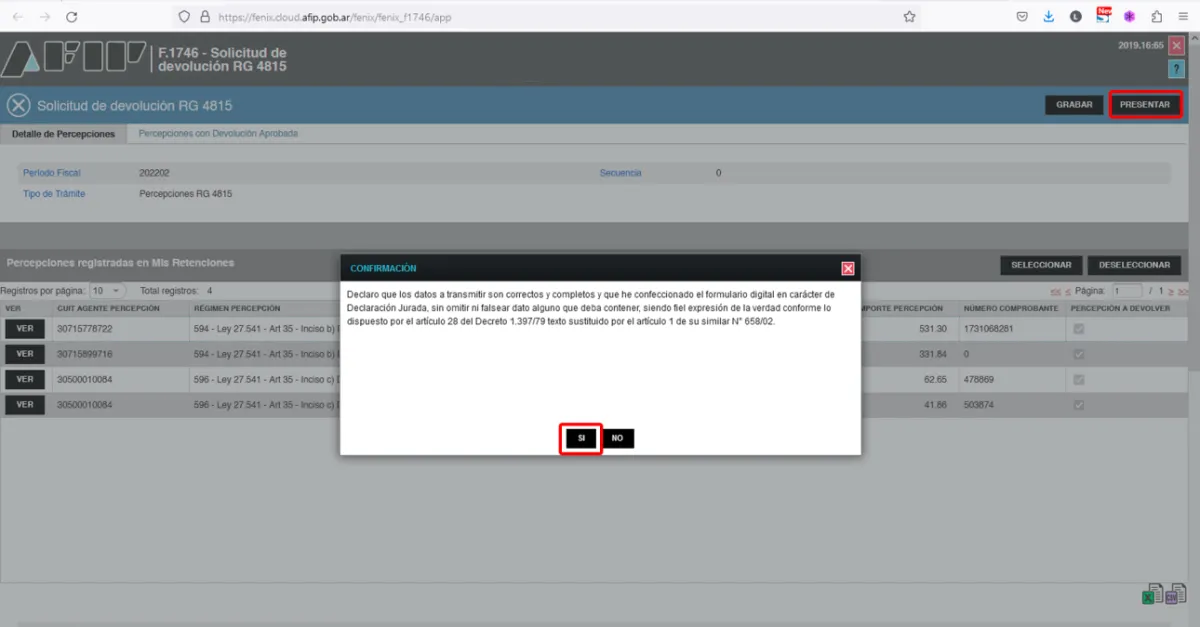
The system will show you all the receipts for the chosen period.
In the list, by default all the items to be claimed are selected.
If you are going to claim all the items, which would be the most common, click on the SUBMIT button, located in the right sector of the screen as can be seen in the example image.
When you click on the button, a pop-up window will appear, with an affidavit type legend, read and click on the YES button.
Return Request Confirmation
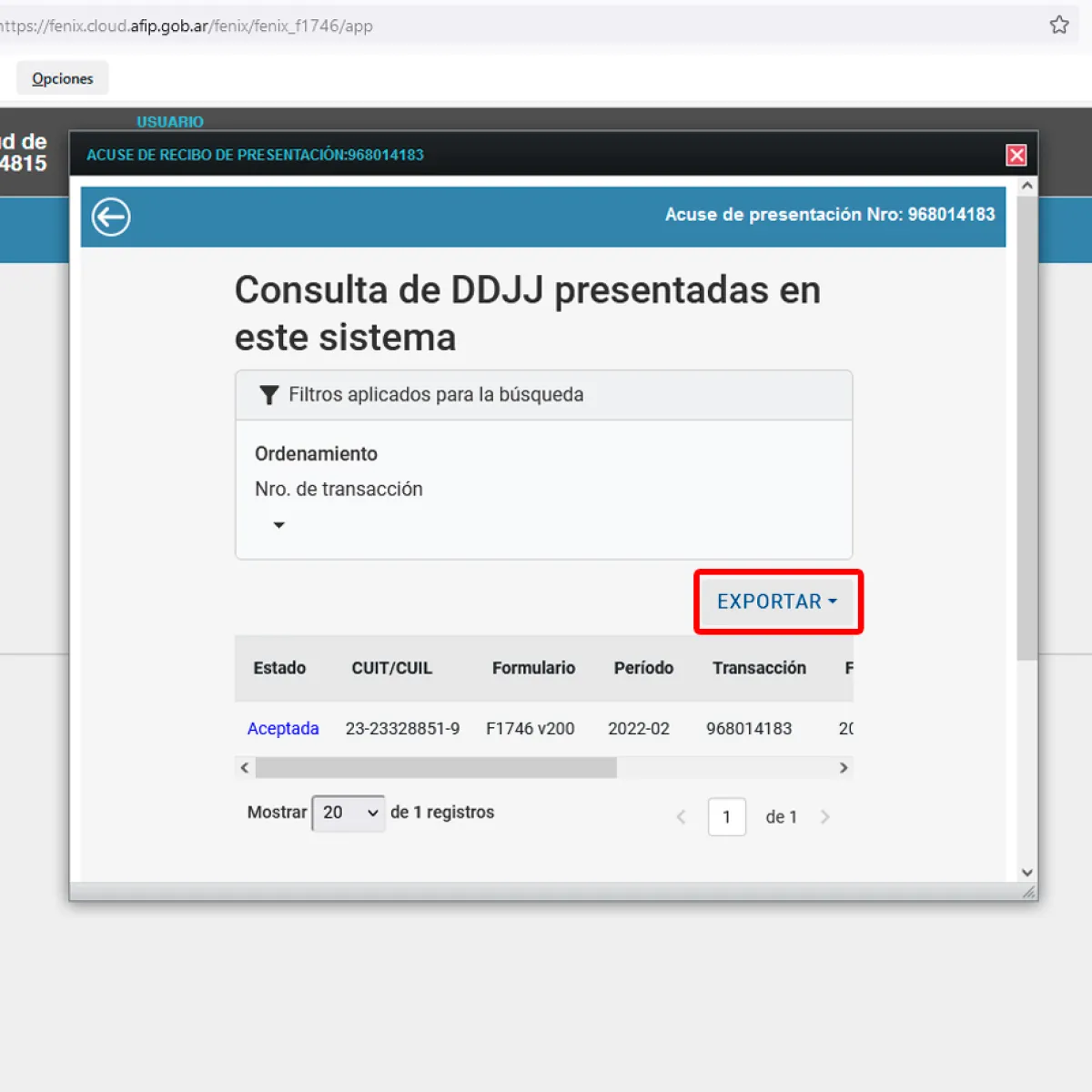
The system will show you a sale with the request acknowledgment.
The system is simply informing you that the requested procedure has been completed.
Although the procedure is already submitted electronically, you may want to save a copy of the procedure. In that case, display the EXPORT button list and save a copy of the presentation in the format that is most familiar to you, in my case I chose PDF.
Once the receipt has been downloaded, close the window, clicking on the X button located in the upper right corner of the pop-up window.
Remember this procedure, you must repeat it for each month/year you wish. claim.
Again click on the NEW button and follow the instructions as we saw previously in point 8.
And that's all. If this helped you and you can get your money back, don't forget to rate and share this article to help others.