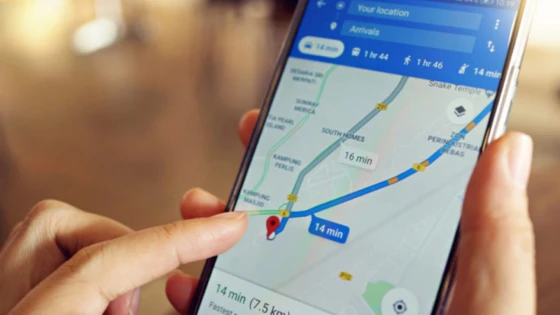
The application as everyone knows is available for devices with Android and iOS from Apple. This is how Google Maps, the digital cartography service, is one of the most used services to consult a postal address, search for a place or establish a route for the long-awaited vacation.
Beyond the traditional uses to which Google Maps has accustomed us, in its latest update, it has included the possibility of being able to download the maps of your interest, allowing you to use all the functionalities for that map without being connected to the internet, and it even works in airplane mode, ideal when you are on the road and there is no signal of any kind.
Here we show you how to do it in brief steps:
Open Google Maps
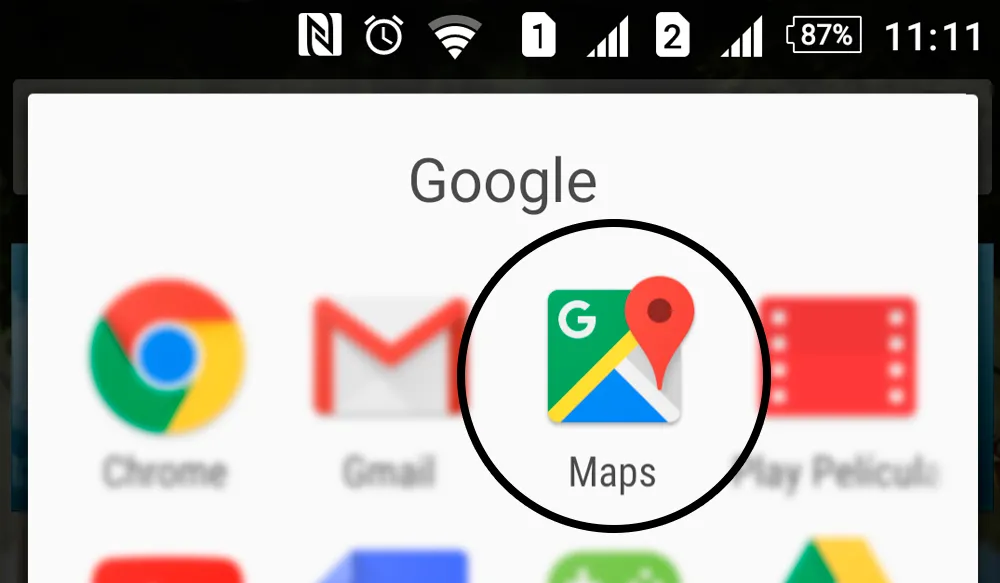
On your smartphone or tablet, search for the application and open Google Maps
Search map to download
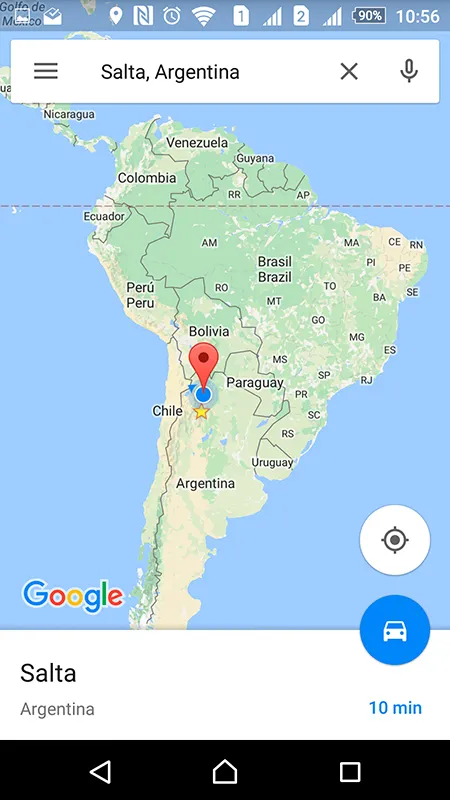
With the application open, in the upper search engine, write the map you want to download, in my case I will choose the map of the province where I live.
Find the download button
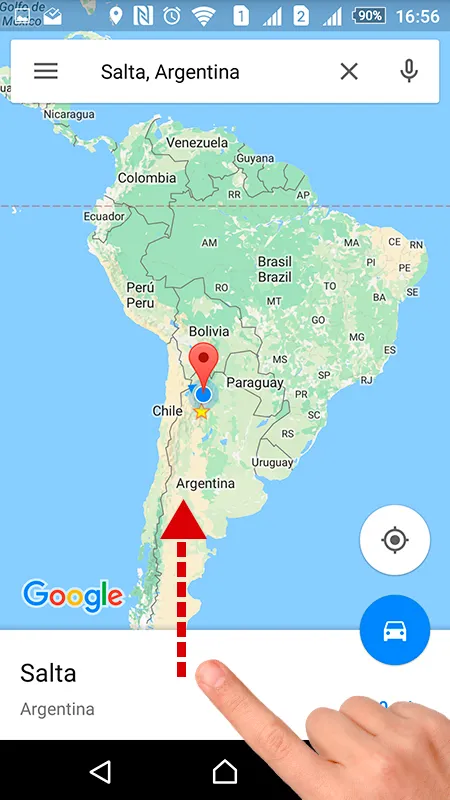
When choosing a map, a screen will appear as you can see in the image, with your finger you will have to press lightly and move it up to see the complete information.
You can click on the image to see the example.
Download map
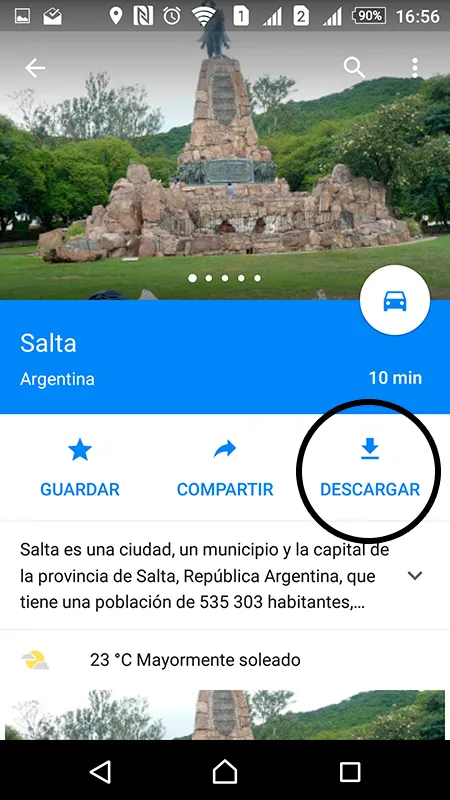
By moving the screen as indicated in the previous step, we will have the button available to download the map. Press the icon.
Final Step
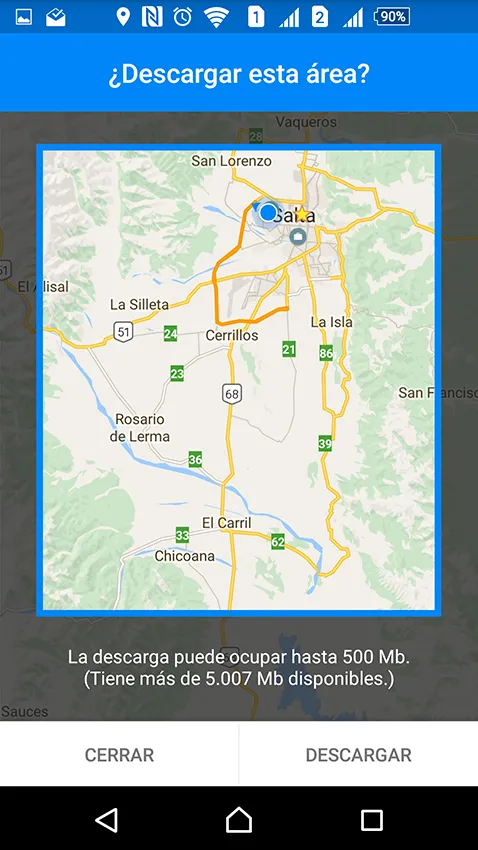
Google Maps will give you the choice of the area to download framed in a blue box.
You can enlarge, shrink and even move the map within the box, but the larger the area the map covers, the more space it will take up. Google, very correctly, took into account reporting the download weight of the chosen map. You can see it in the example image.
Once you are sure of the chosen area and the weight of the map, press the download button at the bottom of the screen
I hope you enjoy it and don't forget to comment on what you thought of the article.
Updated on: 11/12/2015 00:00:00

Hosting y Dominios
Ofrecemos soluciones de alojamiento web de alta performance, seguros y confiables para que tu sitio web o sistema esté siempre disponible.