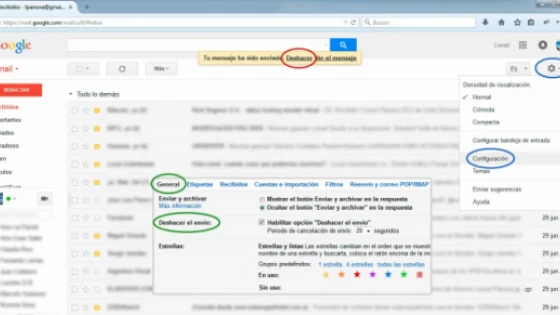
Gmail now offers you up to 30 seconds to cancel sending an email. It's quite simple, to enable this functionality, you must check the "Undo Send" option, and configure the duration that the "Undo" will be available once you have sent the email. You can choose to set it to 5, 10, 20 and 30 seconds.
How to do it?
Open Gmail
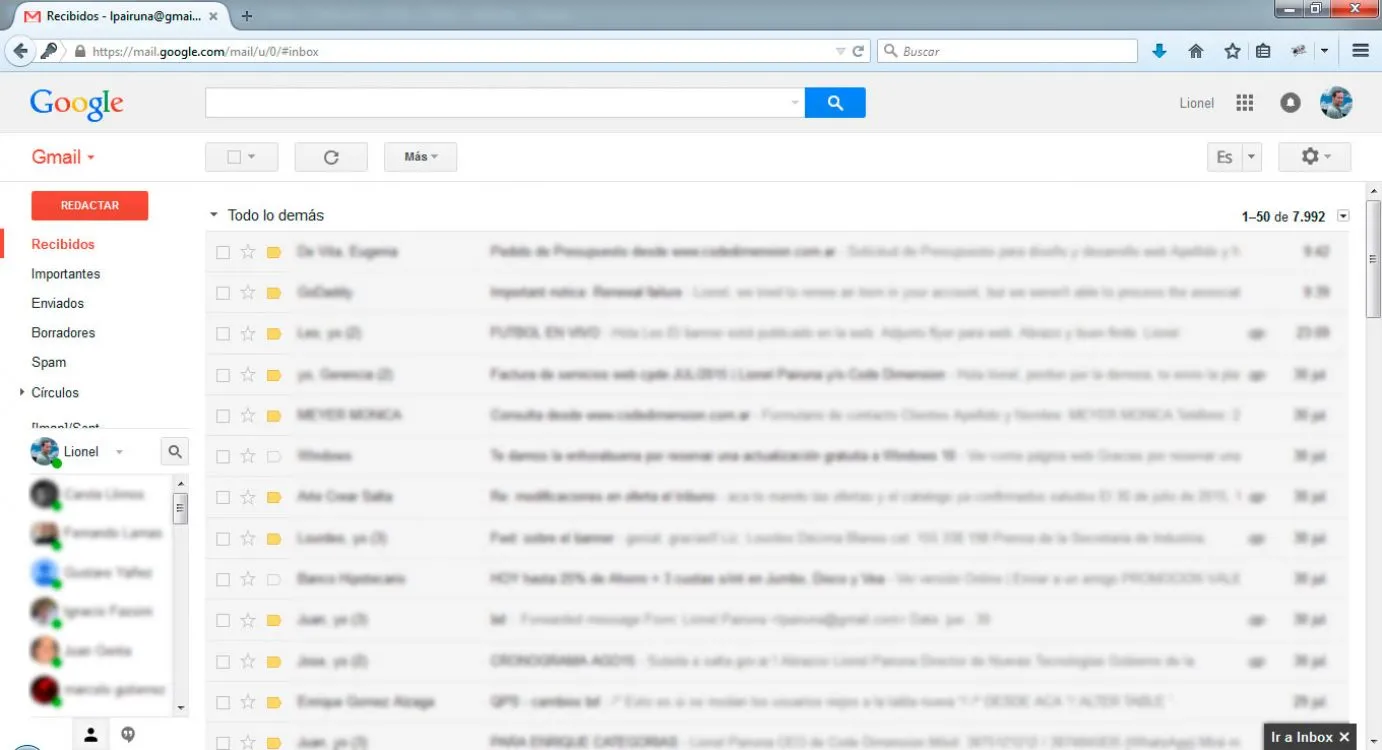
In a web browser, access gmail by entering the web address:
Go to Settings
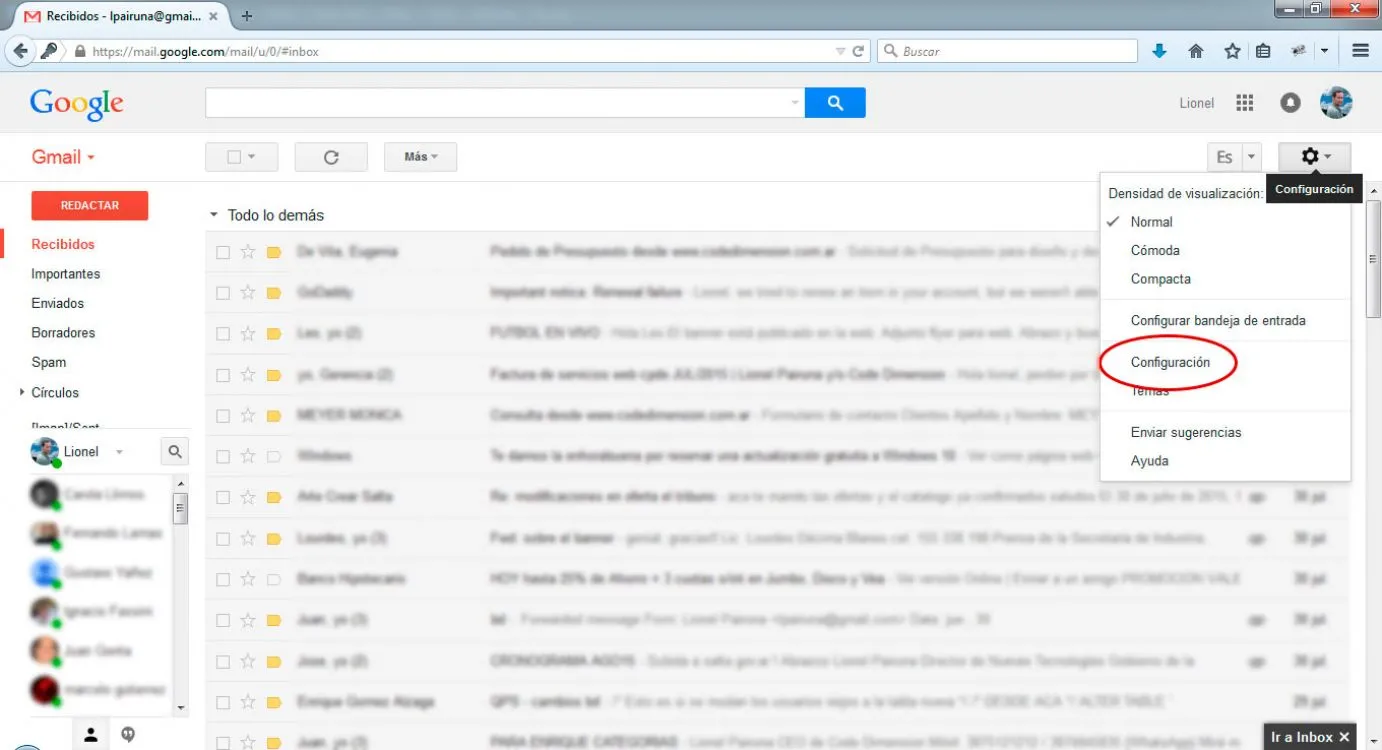
Under your avatar (personal photo) click on Settings (nut icon).
A context menu will be displayed, choose the Settings option as shown in the image.
Undo Send Option
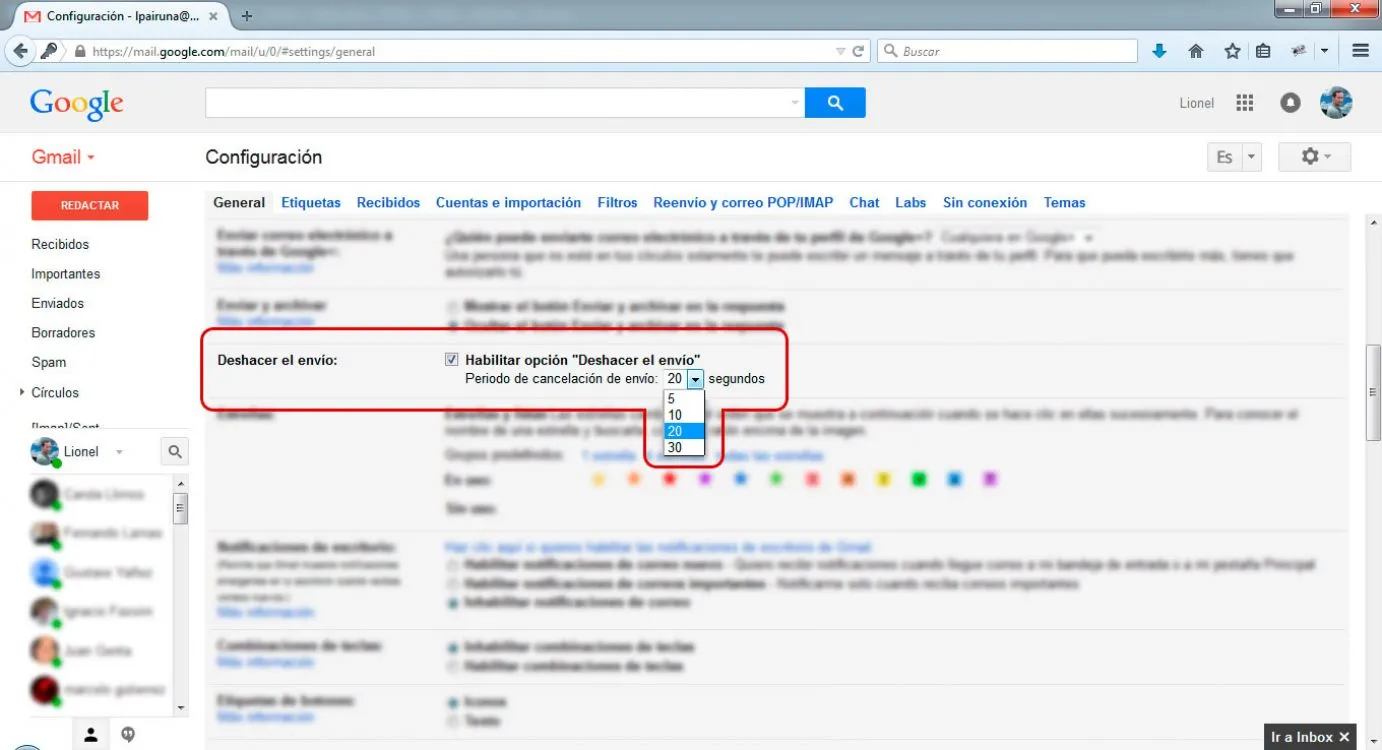
By default it will be positioned in the General tab of Settings, otherwise find it and click on it.
Look for the Undo Send option, you will need to check it and choose the number of seconds to wait that you want Gmail to wait before sending your email.
Commit changes
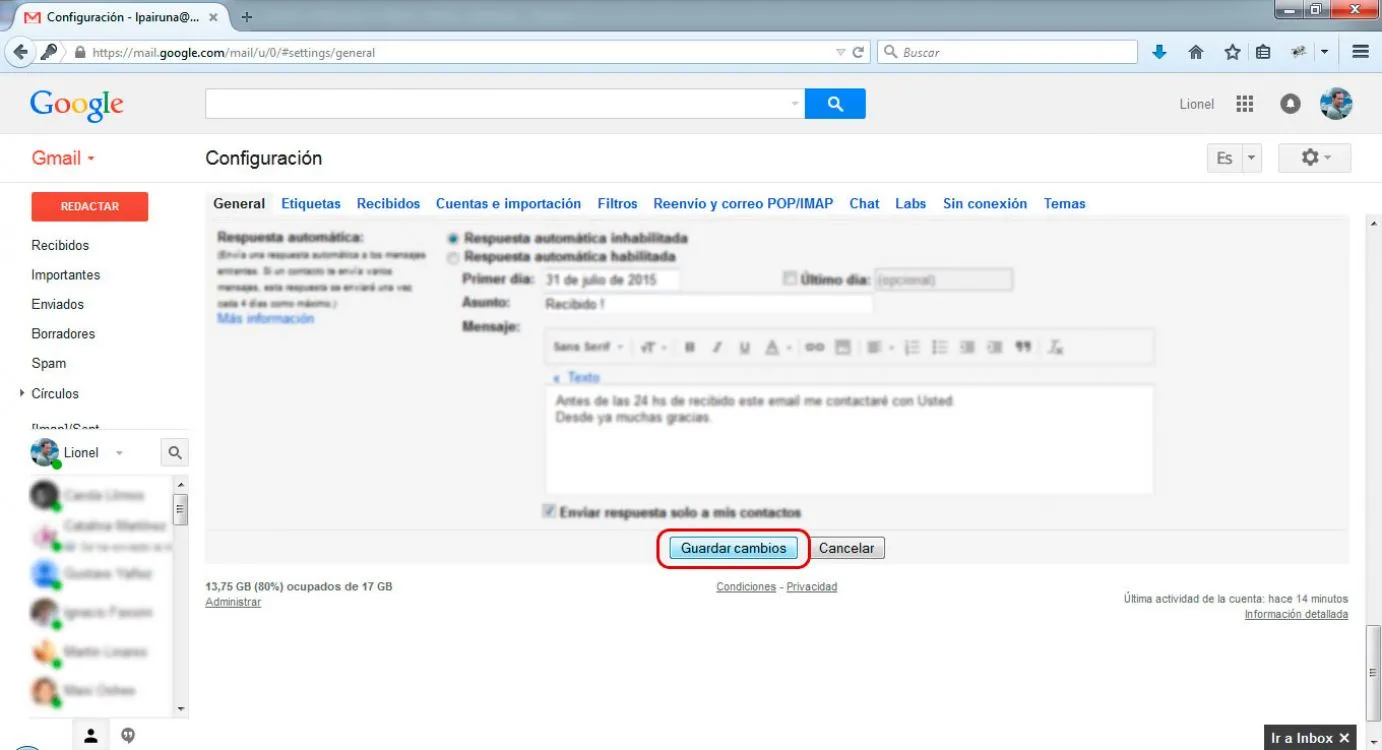
It's the last step, we're almost done.
To have this new Gmail functionality, we must confirm the changes made, for that and using the vertical scroll bar, go to the end of the page and click on the Save changes button as shown in the image.
Send test email
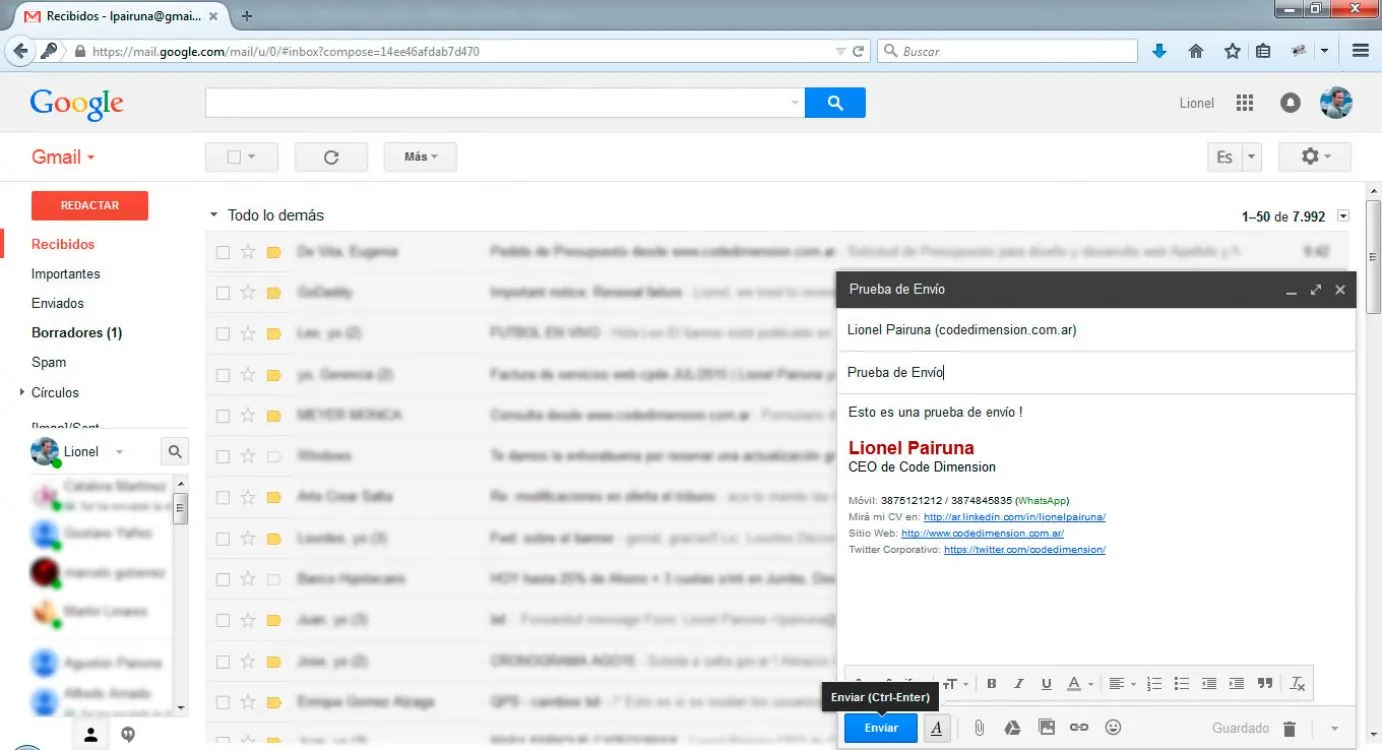
To see how it works we will have to send a test email and verify that it works.
Undo Button Enabled!
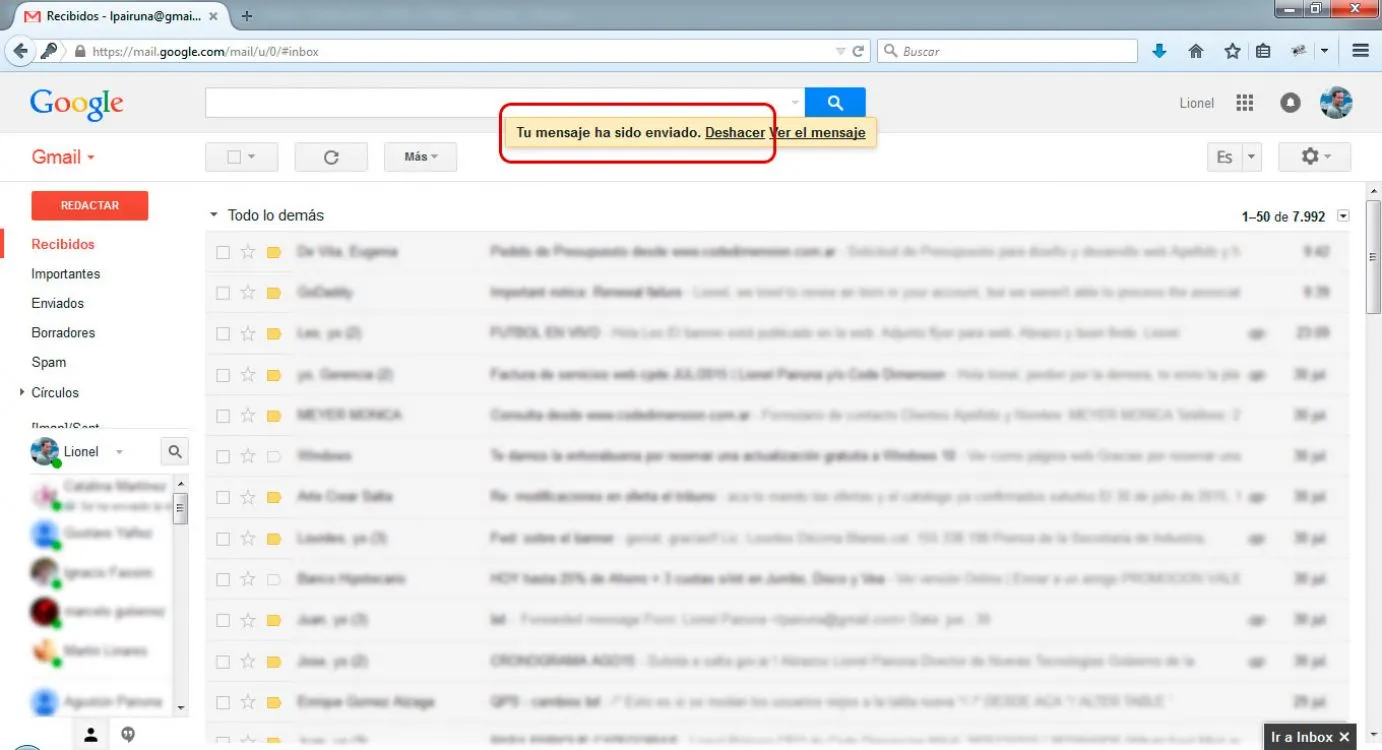
As you can see in the image, after sending the email the button will appear for the defined time.
I hope you liked it and see you next time!
Updated on: 31/07/2015 00:00:00