Google Maps includes many tools that can be useful to users both to avoid traffic and to discover places of interest that they may not have known about. With this app, it is possible to calculate the time it will take to get to a place to share the location in real time with other users.
In addition, you can download maps of places of interest so that they are available offline (and thus avoid spending more data) or schedule the place where you parked so that you don't forget where you left the car. In this note we take a look at some functions that can help you get the most out of this useful and necessary application.
Navigate with augmented reality
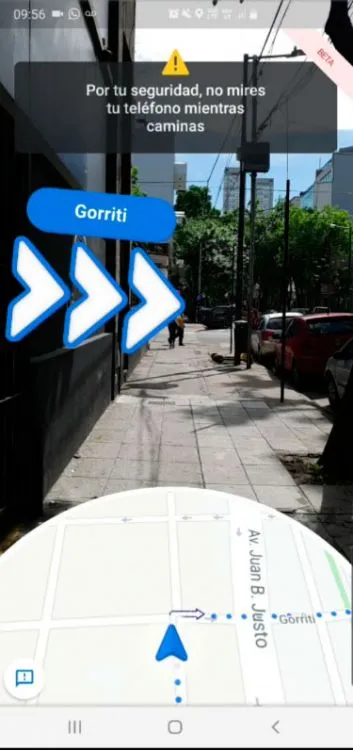
In recent times Google Maps has added many new features, one of them is the possibility of using augmented reality to navigate the map.
To use this tool you have to search Google Maps, choose the destination you want to go to, and then press, at the top, the icon of the person walking to indicate that you are looking for directions to go on foot. Then you have to select the "Instructions" option and "Live View" or "Start AR" next to the "Start" option.
Search places of interest
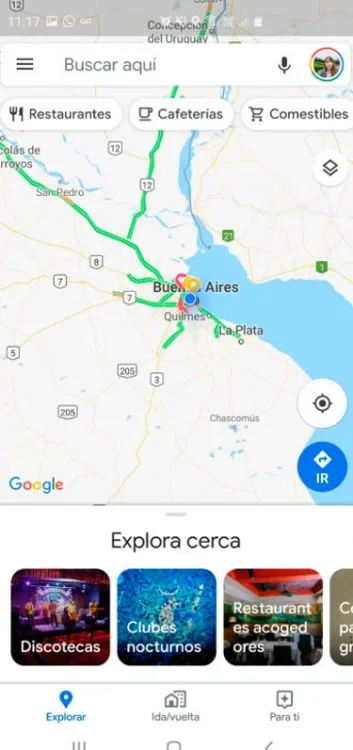
Within Google Maps, at the top, you can see a list of options such as “restaurants”, “confectioneries” or “groceries”, among others, which allow the user to find nearby places linked to these categories.
It is also possible to type directly within the search engine integrated into Maps the place you are looking for such as "pharmacy" or "bar". At the bottom of Google Maps you can take a digital tour of the suggestions grouped around "Explore". Another alternative is to click on the "For you" tab that will offer suggestions based on the user's profile.
Download the offline map

This option is very convenient to save data.
This option is very convenient to save data. To download the map of the region that interests us, we must open the application, go to the configuration menu: on cell phones that support the Android operating system, we must press the three horizontal stripes that appear in the upper margin. On iPhone, you must press the vertical dots to access the download.
Once this is done, you must choose the "Offline Map" option. After clicking there, you will be redirected to a new screen where you will be offered the option to select the map you want to download. You have to select the area of interest that you want to download and then download the content.
incognito mode
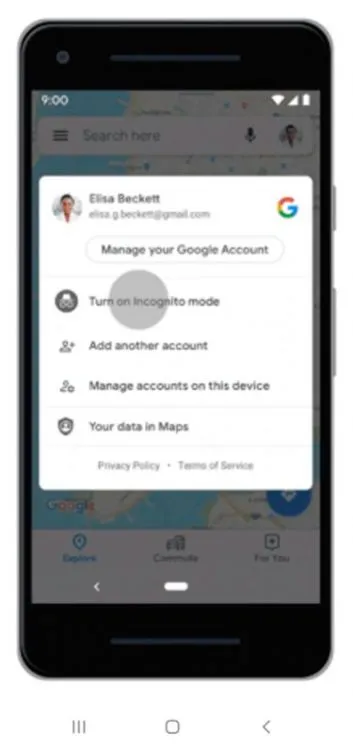
Incognito mode allows you to browse privately on the device.
This means that browsing data will not be saved on your computer or in your Gmail account. In any case, it does not mean that the activity is completely anonymous: it is possible that the sites visited and the service providers can continue to track the activity.
To activate incognito mode in Google Maps, simply select this option in the menu that is displayed when you touch the profile photo within the app. Likewise, it can be deactivated whenever desired.
Manage privacy
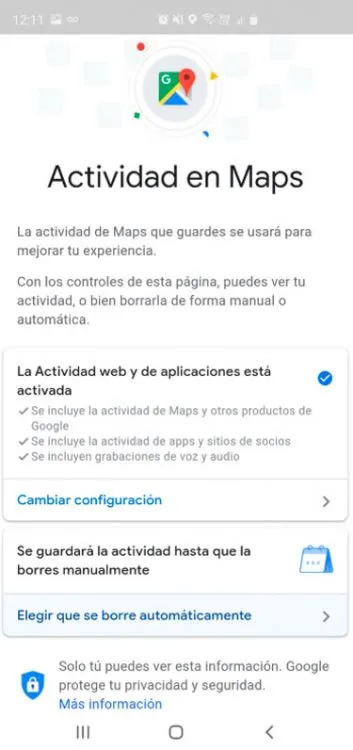
It is possible to delete linked information or opt out of automatically saving information in the app.
To manage these options related to privacy, you must press on the three horizontal lines that appear in the upper left corner (in the case of Android), then choose the option Settings/History of Google Maps and there a screen with options will open.
You can choose to stop storing the activity in Maps or even activate the option to automatically delete the information stored during a certain period that can be 3 or 8 months.
Location sharing
This option allows us to share the location with the contacts we want.
It is used so that the people to whom we want to send our location know where we are, for security reasons, as well as so that they can calculate how long it will take us to get somewhere. This option is also activated from the settings menu, just choose the "Share your location" option.
Save the location where the vehicle was parked
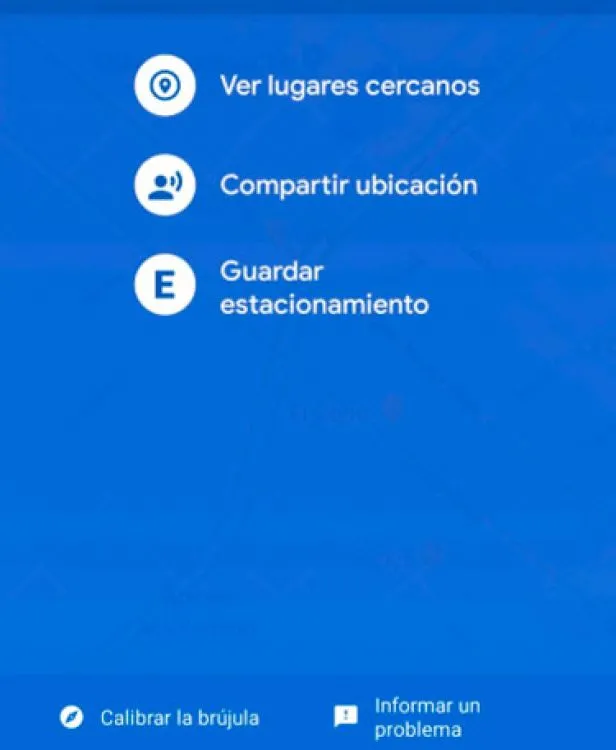
Google Maps offers a tool to schedule the place where the vehicle was left.
Who has ever forgotten where they parked their car? To avoid this, just press the blue circle on Google Maps that indicates the place where we are.
As soon as you press on that circle, a menu will appear with options where one of them is"Save parking". You have to click there and in this way the parking location will be scheduled.
Plan the route: calculate the time it will take to travel
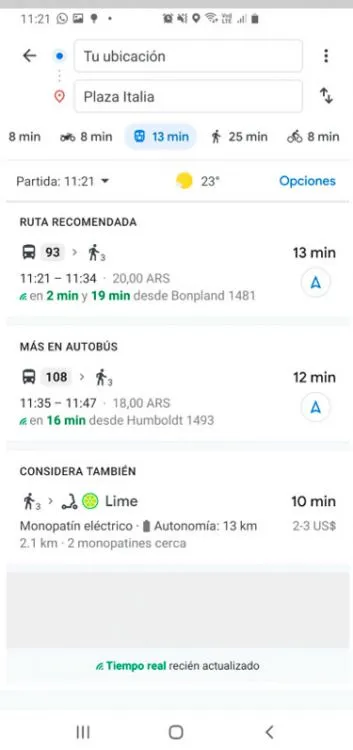
It is possible to see the different transfer options offered to go from one place to another.
Simply open Google Maps, enter the place you want to go to and then click on the "Directions" option at the bottom of the app.
When doing so, you will see the different alternatives that you can use to go to the destination entered, along with the estimated time: private car, motorcycle (it was one of the last additions), public transportation, walking and bicycle.
Within the public transport option you can see the suggested combinations: which can sometimes include subway, train, bus or walk, for example. In these cases, the price of the tour is also stimulated. But in addition, this year the possibility of transportation in applications that offer shared trips such as Uber or Lyft, as well as Lime skateboards, was added.
Driving mode
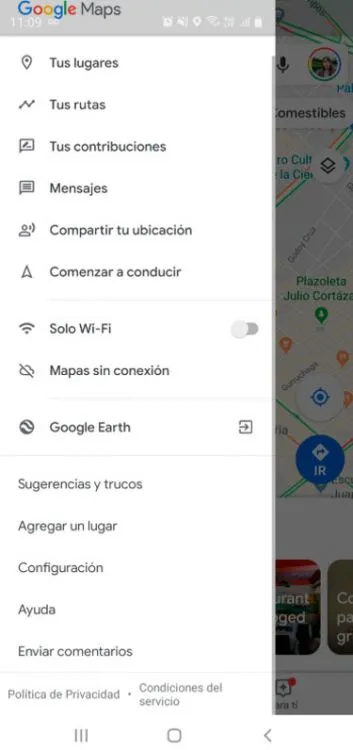
This option allows the driver to receive instructions as they travel to their destination.
To use it, you have to go to the settings menu and select "start driving". By pressing this option, Google Maps will show the route on the map and the voice assistant will give directions, step by step, to get to the desired place.
You must press the "Start driving" option to receive instructions.
Your list of places
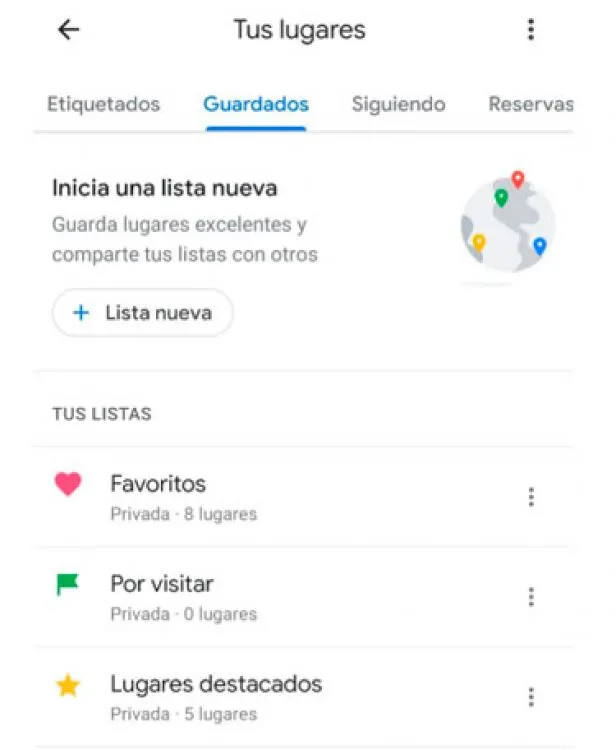
In each of these tabs you will see the sites that have been stored with your use of maps.
Within the configuration menu you can click on the "Your places" option. By doing so, you will be redirected to a screen where you will see a submenu with the following options: Tagged, Saved, Following, Reservations, Visited, Maps.
Within the "Saved" option you can choose to create a New List, as well as edit the lists already created, adding or deleting elements that are stored there.
Updated on: 28/12/2019 00:00:00
Source of Information: Infobae
Sistemas a medida y Automatizaciones
Desarrollamos sistemas a medida que automatizan procesos, mejoran la gestión y te permiten escalar tu negocio con soluciones ágiles y flexibles.