
If you work from home, you've probably heard of Zoom, one of the leading video conferencing software applications on the market.
It allows you to interact virtually with coworkers or employers when in-person meetings aren't possible. This makes teleworking seem much more human, as it helps you feel connected. With the emergence of the coronavirus COVID-19 around the world, Zoom has taken on greater prominence and has become an essential tool to stay in touch and continue your daily workflows with minimal interruption on small, medium and large devices.
What is zoom?
Zoom is a cloud-based video conferencing service, which you can use to meet virtually with others, whether by video, audio or both, all while doing live chats, and allows you to record those sessions to view later. More than half of Fortune 500 companies reportedly used Zoom in 2019.
When people talk about Zoom, you'll typically hear the following phrases: Zoom Meeting and Zoom Room. A Zoom meeting refers to a video conference meeting hosted with Zoom. You can join these meetings via webcam or phone. Meanwhile, a Zoom Room is the physical hardware setup that allows businesses to schedule and launch Zoom Meetings from their conference rooms.
Zoom Rooms require an additional subscription on top of a Zoom subscription and are an ideal solution for larger businesses.
Key Features of Zoom
Here are the key features of Zoom:
- Meetings Individuals: Host unlimited one-on-one meetings even with the free plan.
- Group Video Conferencing: Host up to 500 participants (if you purchase the “large meeting” add-on). However, the free plan allows you to organize video conferences of up to 40 minutes and up to 100 participants.
- Screen sharing: Meet one on one or with large groups and share your screen with them so they can see what you see.
How does Zoom work?
Next, we explain everything about this tool that is trending worldwide.
Choose your plan
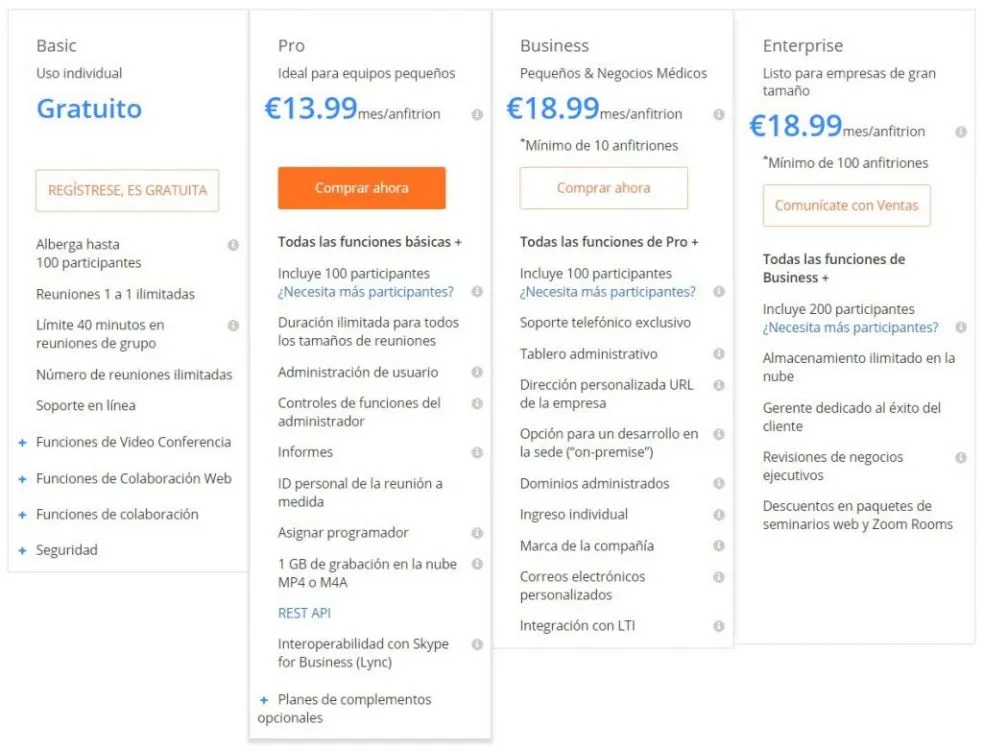
Zoom offers four pricing levels, you should choose the one that best suits you.
Zoom enables one-on-one chat sessions that can be converted into group calls, training sessions and webinars for internal and external audiences, and global video meetings from 100, 300, 500 and 1,000 participants depending on the version used. The free tier allows unlimited meetings, but with a 40-minute limit on group meetings. Paid plans start at $15 per month per host.
- Free Zoom: This tier is free. You can hold an unlimited number of 1-on-1 meetings. Group meetings with multiple participants have a limit of up to 40 minutes, meetings cannot be recorded and as we mentioned before, it allows up to 100 simultaneous users.
- Zoom Pro: this level costs U$D 14.99 per month. It has all the benefits of the free version and also has a meeting duration limit of 24 hours, user administration, administrator function controls, reports, custom personal meeting ID, allows you to assign a scheduler, and allows you to record videos up to 1 GB in the cloud supporting MP4 or M4A formats.
- Zoom Business: this level costs U$D 19.99 per month. It has all the benefits of the Pro version, plus the ability to include 300 participants, dedicated phone support, Administrative Control Panel,
Custom company URL, Option for on-premise development
Managed domains, Individual login, Company branding, Custom emails
Integration with LTI and Transcriptions of recordings in the cloud. - Zoom Enterprise: this level costs $19.99 per month. It has all the benefits of the Business version and includes 500 up to participants, but if you access the Enterprise Plus plan it includes 1,000 participants, plus unlimited cloud storage, dedicated customer success manager, executive business reviews, discounts on webinar packages and Zoom Rooms
- Optional - Zoom Rooms: If you want to set up Zoom Rooms, you can sign up for a 30-day free trial, after which Zoom Rooms requires an additional $49 per month and room subscription, while Zoom webinars cost U$D 40 per month per host.
App Downloads
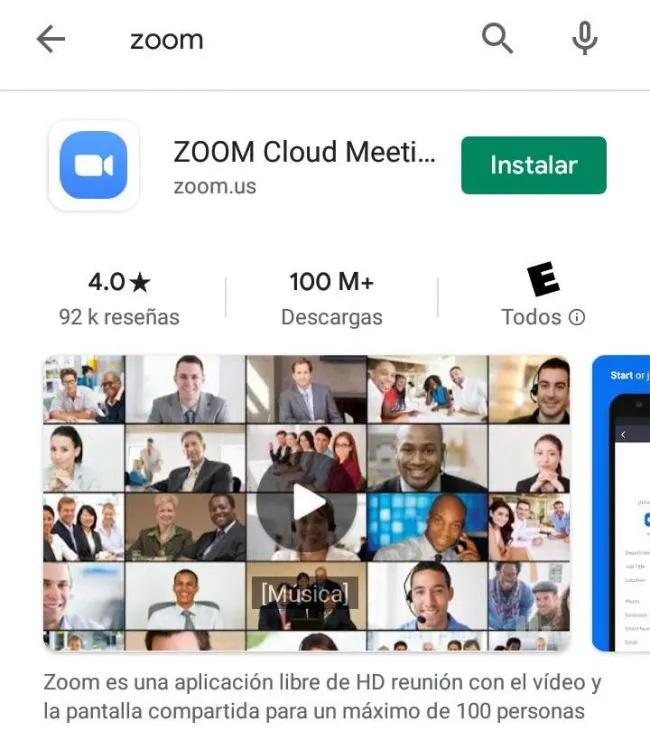
The desktop app is available for Windows and MacOS, while the mobile app is available for Android and iOS.
All apps allow you to join a meeting without signing in, but also allow you to sign in with a Zoom, Google, Facebook, or SSO account. From there, you can start a meeting, join a meeting, share your screen in a Zoom room by entering the meeting ID, start Zoom meetings, mute/unmute the microphone, start/stop video, invite others to the meeting, change your username, chat in the meeting, and start a cloud recording.
If you're a desktop user, you can also start a local recording, create polls, broadcast your Facebook live on Facebook, and more. In other words, the desktop app has more features, although, if you are a free user, you can still get a lot of mileage from the mobile app.
To download the Window version click here: https://zoom.us/download
To download the macOS version click here: https://support.zoom.us/hc/en-us/articles/203020795-How-To-Install-on-Mac
To download the Android version click here: https://play.google.com/store/apps/details?id=us.zoom.videomeetings
To download the iOS version click here: https://apps.apple.com/us/app/id546505307
Outlook Add-in
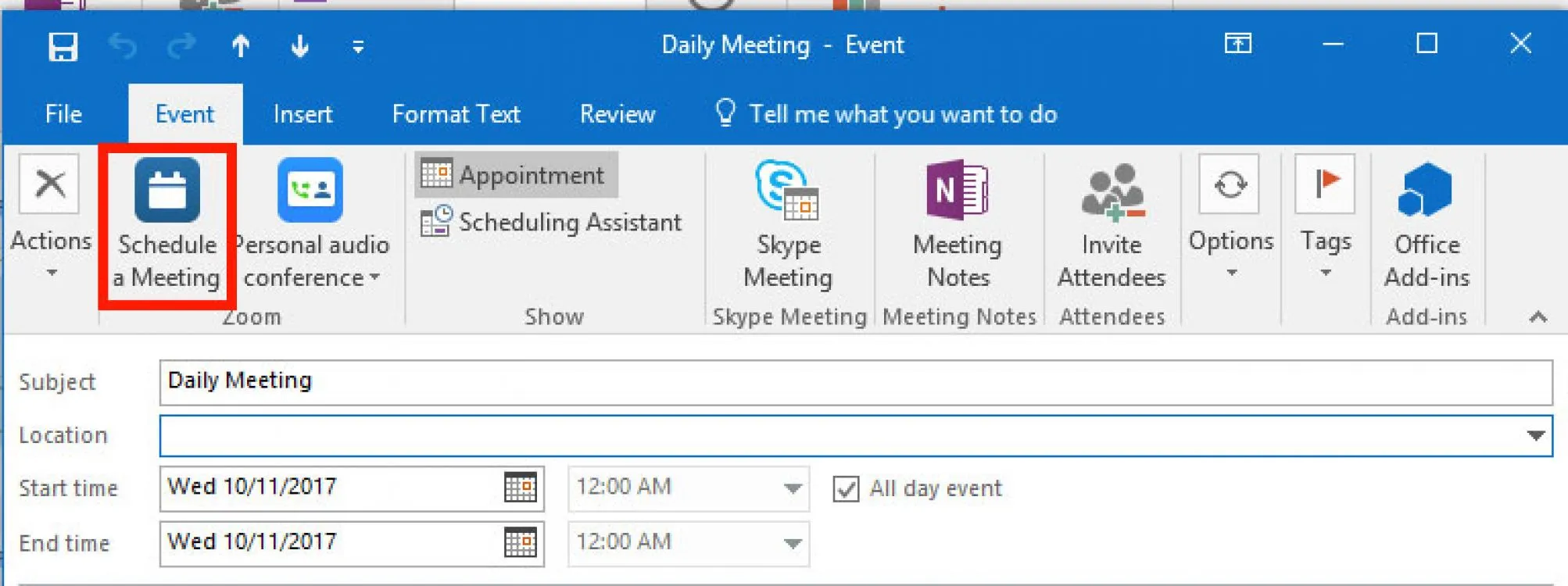
Embed direct Zoom buttons in your Outlook account and on the web
In addition to the other Zoom app downloads, it is also possible to use Zoom in other ways. For example, there is a Zoom Outlook add-in that is designed to work directly in your Microsoft Outlook client or as an add-on for Outlook on the web. This Outlook add-in places a Zoom button directly on the standard Outlook toolbar and allows you to start or schedule a Zoom meeting with a simple click.
Download Microsoft Outlook add-in: https://zoom.us/download
Download Microsoft Outlook add-in on the web: https://appsource.microsoft.com/en-us/product/office/WA104381712?src=office&corrid=888bdad3-6d44-4852-85eb -098cf77ef32c&omexanonuid=ed58f2c4-64b2-48f0-a2b3-9375dea494f9&referralurl=https%3a%2f%2fzoom.us%2f
Expand browser extensions
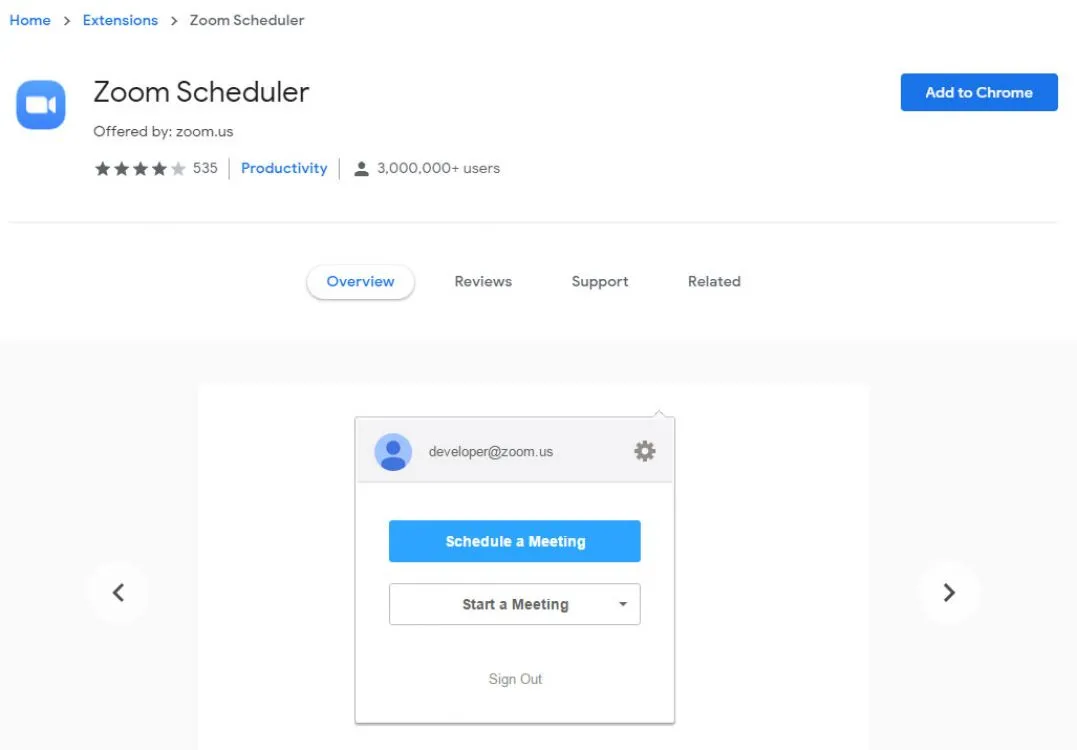
Create an extension in your favorite browser
Another tool to quickly start or schedule a Zoom meeting comes in the form of an extension for your favorite browser. There is a Zoom Chrome extension and Zoom Firefox add-on that allow you to schedule a Zoom meeting through Google Calendar. A simple click on the Zoom button and you can start a meeting or schedule one for later with all information about the meeting sent through Google Calendar for easy participant participation.
Extension in Google Chrome: https: //chrome.google.com/webstore/detail/zoom-scheduler/kgjfgplpablkjnlkjmjdecgdpfankdle?hl=en&gl=US&authuser=1
Extension in Mozilla Firefox: https://addons.mozilla.org/en-US/firefox/addon/zoom-new-scheduler/
Using Zoom in your browser
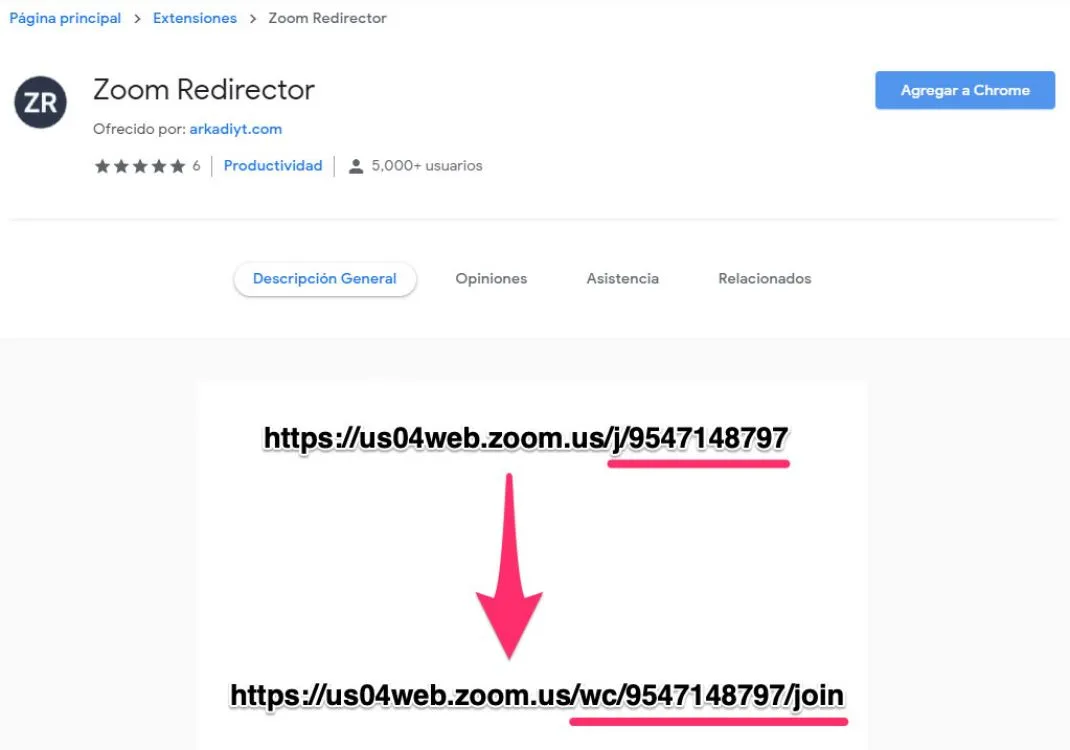
Allows you to join a meeting directly using a Zoom web client link
It's quite difficult to join a Zoom meeting in your browser without using the app. However, it is possible. For example, you can join a meeting directly using a Zoom web client link that looks like this: zoom.us/wc/join/your-meeting-id.
Some smart bodies have also developed a browser extension that allows you to join a Zoom meeting directly from your browser without the hassle of the app. This is ideal if you're on a secure work laptop that doesn't let you install any apps, for example.
Browser extension with Google Chrome: https://chrome.google.com/webstore/detail/zoom-redirector/fmaeeiocbalinknpdkjjfogehkdcbkcd
Browser extension with Mozilla Firefox: https://addons.mozilla.org/en-US/firefox/addon/zoom-redirector/
Free users
You can download the Zoom app on your computer or phone and join any meeting with a supplied meeting ID. You can also choose to turn off audio or video before joining. You could even create your free Zoom account, like linking your Google account, and from there you can create a new meeting, schedule one, join a meeting, share a screen, add contacts, etc.
Just keep in mind that you can only log into Zoom on one computer, tablet, and phone at a time. If you sign in on an additional device while connected to another device of the same type, Zoom said you will be automatically signed out of the first device.
Paid Users
You can sign up and download Zoom on your computer using your work email if your system administrator has a Pro, Business, or Enterprise account. Next, you'll want to sync Zoom with your calendar so you can schedule Zoom meetings and invite remote participants to join.
If you're setting up a Zoom Room, you'll need a computer to sync and run Zoom Meetings and a tablet for attendees to start Zoom Meetings. You will also need a microphone, a camera and a speaker, at least one HDTV monitor to display to remote meeting participants and an HDMI cable to share computer screens on one screen, as well as an Internet cable for your connection
You will also need to download "Zoom Rooms for Conference Room" on the computer in the room and "Zoom Room Controller" for the tablet in the meeting room. You can then sync those rooms with your company's shared calendar so employees can see which meeting rooms are available.
Tips and tricks: Create recurring meetings
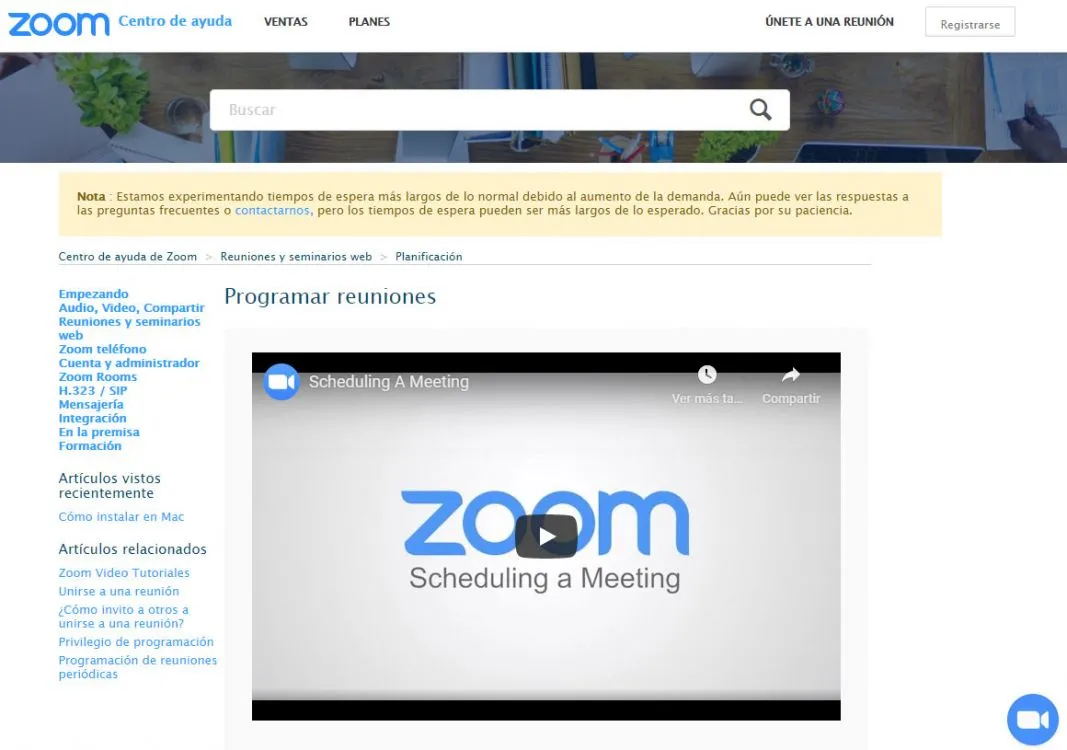
Allows meeting data to be stored for periodic reuse
Zoom allows you to create recurring meetings. You can set the call settings you want once and have them be there every time you plan to meet, and you can join calls using the same URL each time. In the Zoom mobile app, just log in, click schedule, tap the Repeat option, and select a repeat. For more information on general meeting scheduling and all meeting settings, see Zoom's Meeting Scheduling FAQ.
How to record Zoom calls as video

Store calls made in the cloud
Zoom allows you to record calls as videos. However, you need permission to do so. The meeting host will need to enable recordings in settings. It's worth checking your account settings to make sure recording is enabled before you begin.
- Sign into your Zoom account
- Click to view account settings / meeting settings
- Navigate to the Recording tab and click to enable video recording
It's worth noting that Zoom administrators can turn on recording for everyone, for users or for groups. There is more guidance on recording settings here.
To record a Zoom meeting, you need to choose whether you want to use the local or cloud option.
Local means that you store the video file yourself on your computer or another storage area. With Cloud, which is only for paid subscribers, Zoom stores the video for you in your cloud storage. But, to record videos, you need Zoom on macOS, Windows, or Linux. When you record a meeting and choose Record to Cloud, the video, audio, and text of the chat are recorded in the Zoom cloud.
To record a call, follow the steps at this link: https://support.zoom.us/hc/en-us/articles/201362473-Local-Recording
When the Zoom call begins, you should see an option to record at the bottom of the screen. By clicking that, you can record locally or to the cloud.
If you don't see the recording option, check your settings in the web app (under My Meeting Settings) or have your account administrator enable it. Recording files can be downloaded to a computer or streamed from a browser.
During the meeting, you can also see which participants are recording the meeting, and meeting participants will also be informed when the meeting is being recorded. When the call ends, Zoom will automatically convert the recording into a usable MP4 video file.
Recording Zoom meetings on mobile devices
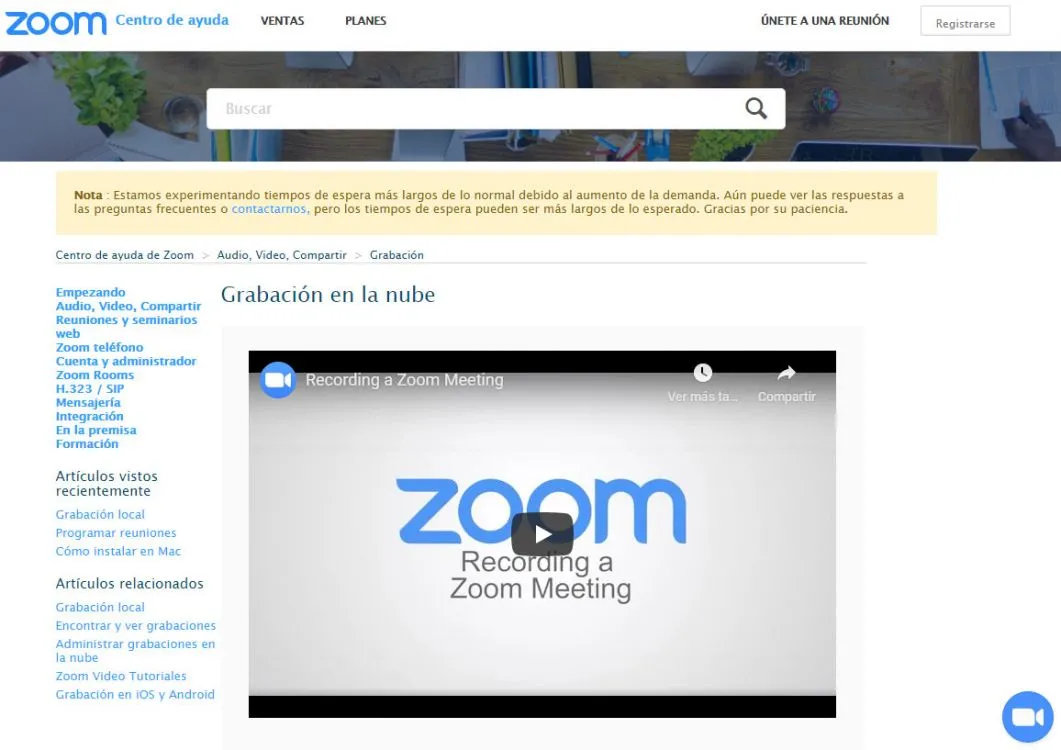
Using a paid membership, you can record meetings on mobile devices
It is also possible to record Zoom meetings and calls on mobile devices. However, this is done via cloud recordings, so you need a paid Zoom membership to use this feature. It's also worth noting that cloud storage is limited, so be careful how many meetings you record while using the mobile app.
To record a Zoom call on mobile, follow these steps:
- Open the Zoom app on your mobile
- Click to join or start a meeting
- Click the three-dot menu in the bottom right corner of the screen.
- Click "Record to cloud" or "record"
- You will then see a recording icon and the ability to pause or stop the recording.
- Once the call ends, you will find the recording in the "My Recordings" section of the Zoom site
Learn how to record meetings on mobile devices by clicking here: https://support.zoom.us/hc/en-us/articles/203741855-Cloud-Recording
Where does Zoom save recordings?
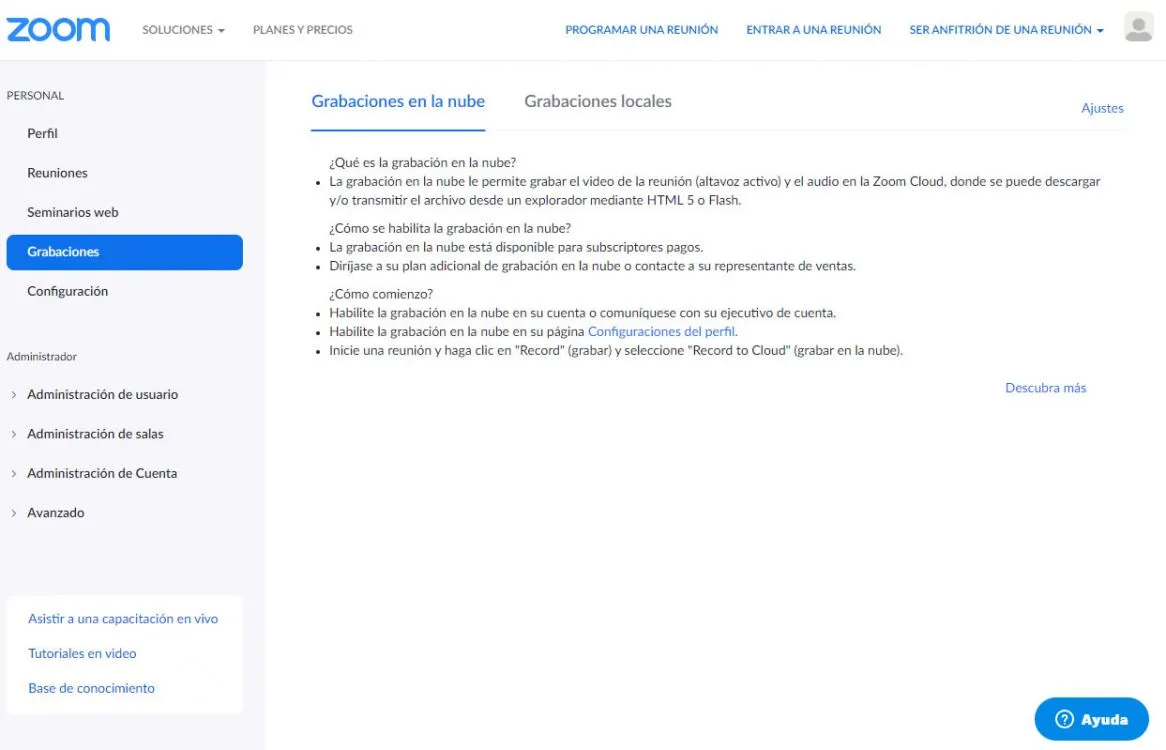
Access the folder that saves the recordings
When you record locally, Zoom call recordings are saved to the Zoom folder on your PC or Mac. These can be found in these locations:
- PC: C:\Users\Username\Documents\Zoom
- Mac: /Users/Username/Documents/Zoom
You can easily access Zoom recordings by opening the Zoom app and navigating to meetings. Once there, you'll see a "recorded" tab where you can choose the meeting you need and then play the recording or open it.
For cloud storage of your Zoom meeting recordings, log in to your account and go to the My Recordings page.
Learn more about Zoom recordings here: https://support.zoom.us/hc/en-us/articles/201362473-Local-Recording
Customize your profile
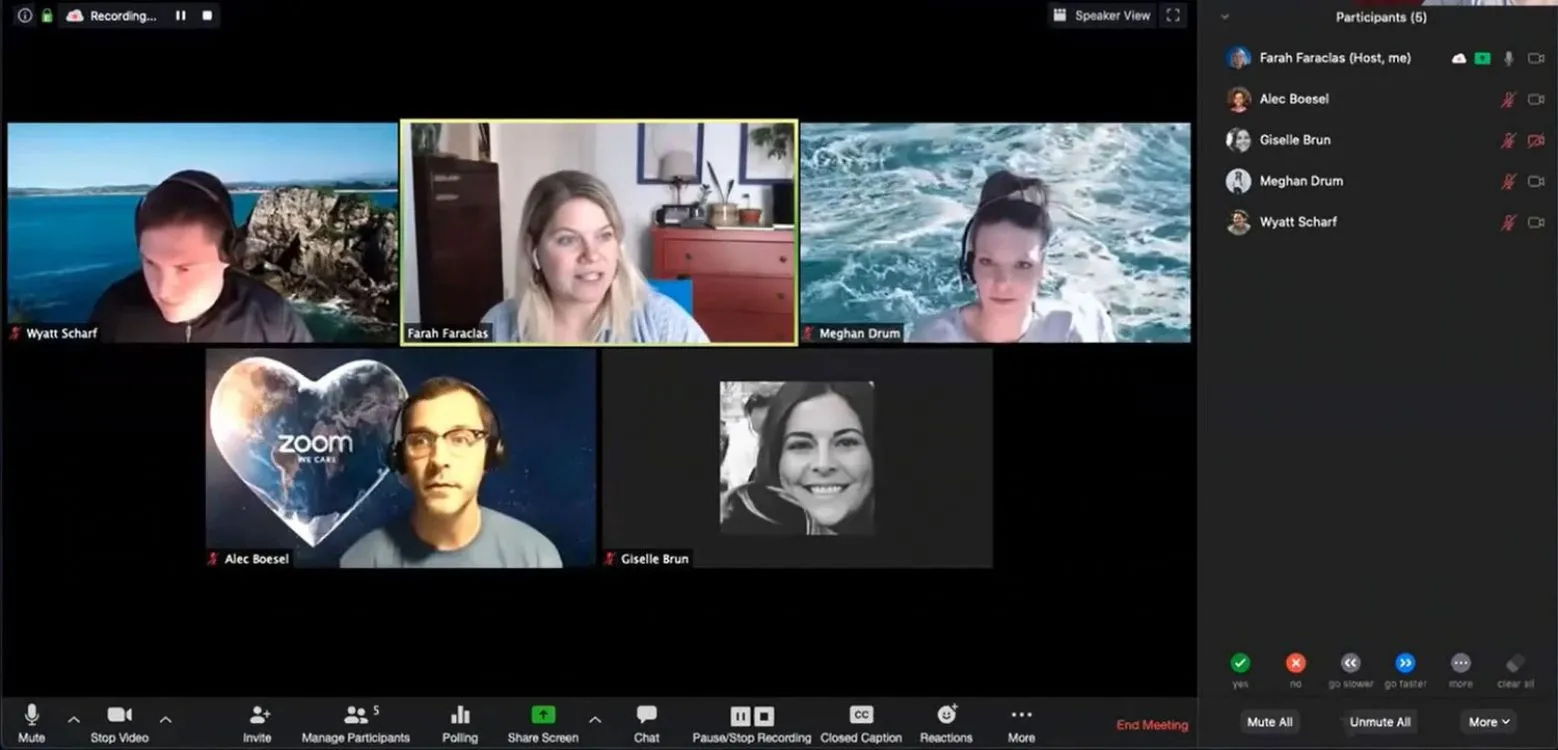
Allows you to customize your profile
If you want to liven things up a bit or don't want other people on the Zoom call to see the horrible mess in your home, then there's good news as Zoom offers virtual backgrounds. These are backgrounds for your calls that include things like space, cityscapes, and ocean views too.
With Zoom virtual backgrounds, you can also upload an image of anything you want to personalize your background. It is available for both iPhone and desktop computers.
How to use virtual backgrounds on the desktop

Zoom provides some specific virtual backgrounds for your desktop
It's pretty easy to get started with virtual Zoom backgrounds. On a Mac or PC, for example, simply open your Zoom client, click the "Settings" icon in the corner, and select "Virtual Background" from the side menu.
Zoom provides some virtual backgrounds. Click the one you would like to use. If you want your own background, click the plus sign above and to the left of the sample backgrounds, choose an image from your computer and add it.
You can also add a virtual background during a meeting. In your Zoom client, click the arrow next to the video symbol on the left, select "Choose a virtual background..." and you'll see the same Virtual Background page.
The company recommends using a green screen and a good webcam for the best results, but it's also possible to use a virtual background without a green screen.
How to use virtual backgrounds in the mobile app
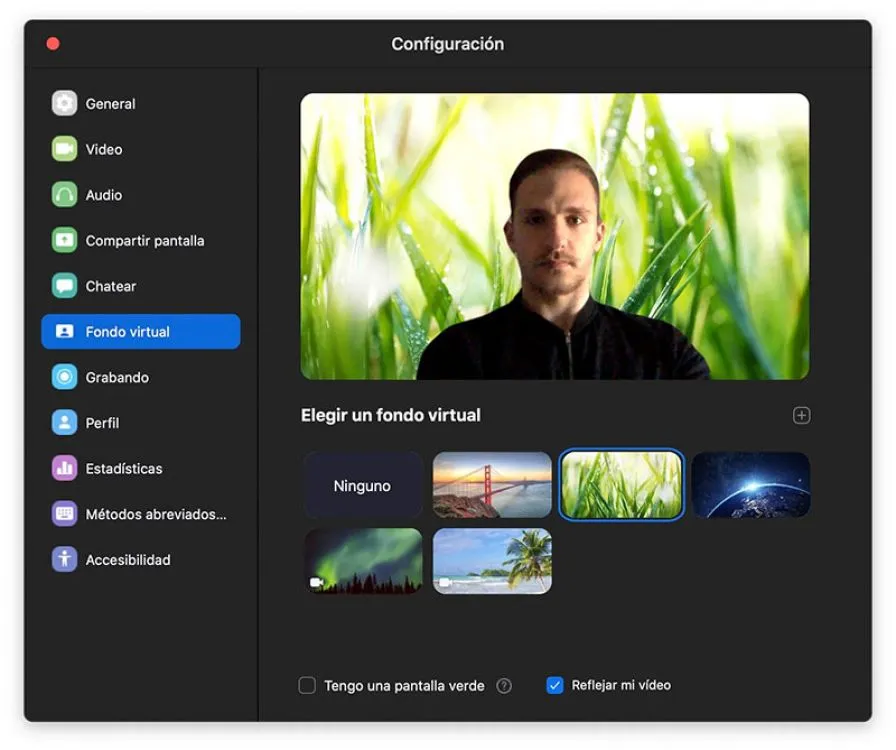
You can use Zoom virtual backgrounds in the app
Sign in to your account and join a meeting using your phone. Then click on the three dots at the bottom of the screen and click on the "more" menu. Then click on "virtual background" and choose the background you want to use.
Touch up my appearance
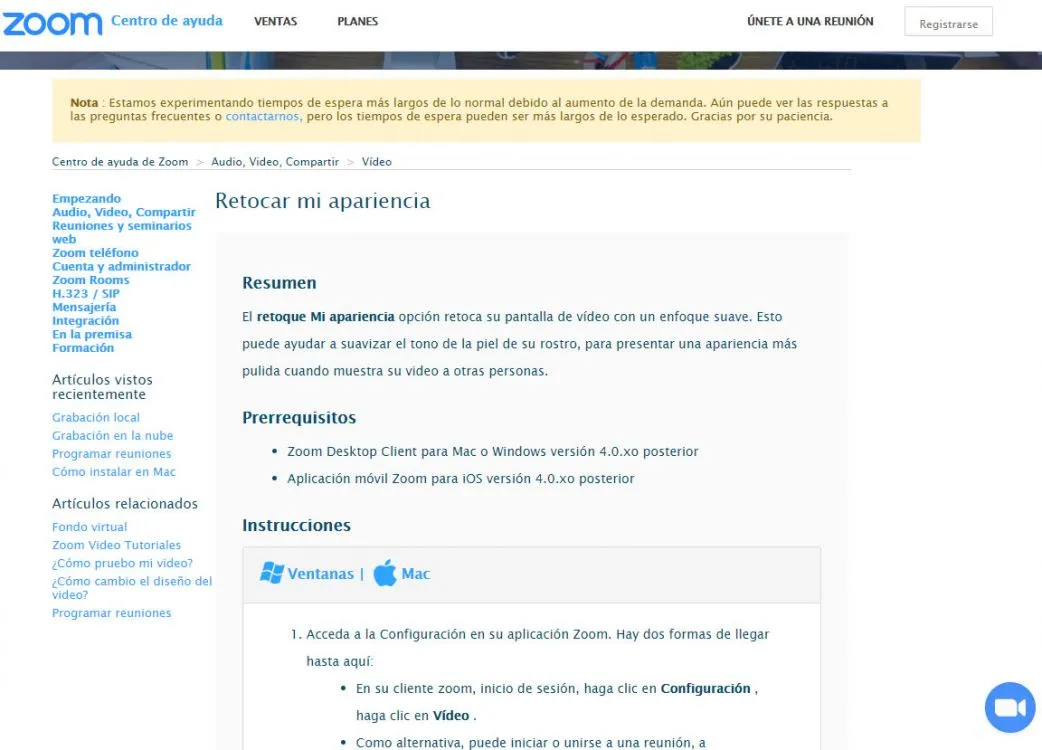
Offers the ability to improve your appearance when you are on a call
In addition to virtual backgrounds, Zoom offers the ability to enhance your appearance when you're on a call. There's a feature called 'Touch Up My Appearance' which is useful if you haven't had your daily dose of caffeine or are struggling with home office life.
Touch Up My Appearance uses a filter to subtly soften fine lines and should look very natural. To use Touch Up My Appearance, go to Settings and, in the Video tab, check the box next to Touch Up.
To learn how to touch up appearance, click here: https://support.zoom.us/hc/en-us/articles/115002595343-Touch-Up-My-Appearance
Record transcripts
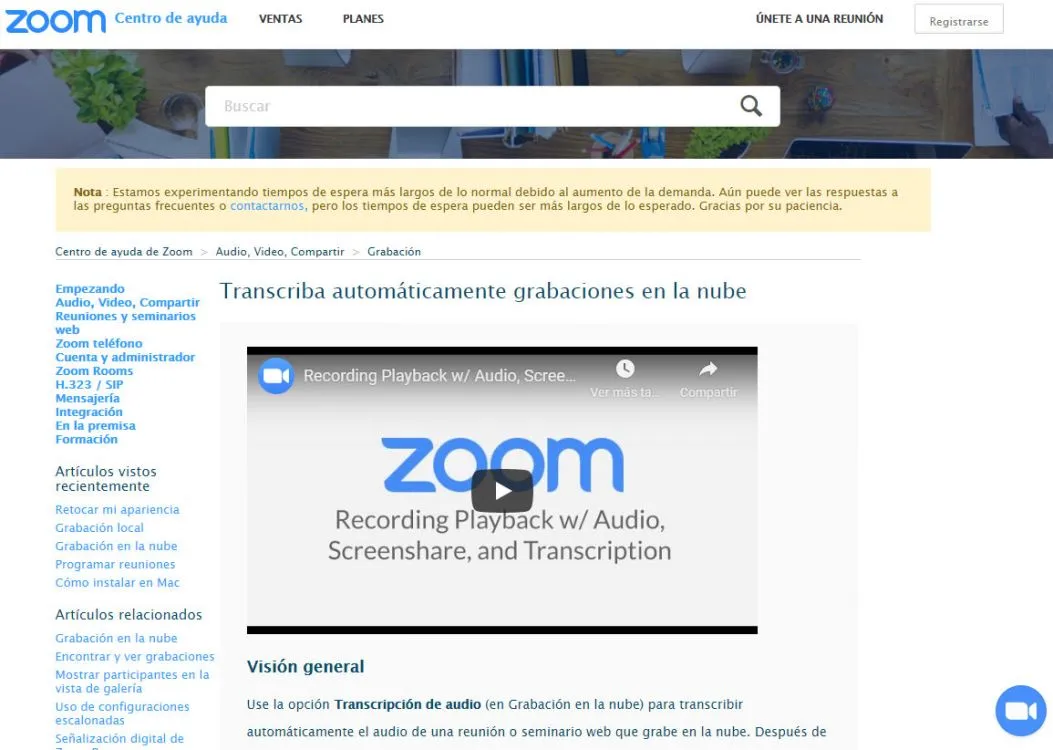
Audio from a meeting you record in the cloud can be automatically transcribed
In addition to recording Zoom meetings, you can also automatically transcribe audio from a meeting you record in the cloud. And, as the meeting host, you can edit your transcript, scan the transcript text for keywords to access the video at that moment, and share the recording.
To enable the Audio Transcription feature for your own use, log in to the Zoom web portal and navigate to My Meeting Settings, then go to the cloud recording option in the Recording tab and verify that the setting is enabled. Choose Activate, if necessary. If the option is grayed out, you have been blocked at the Group or Account level, and you will need to contact your Zoom administrator.
For more information, click here: https://support.zoom.us/hc/en-us/articles/115004794983-Automatically-Transcribe-Cloud-Recordings-
View of the gallery of 100 people
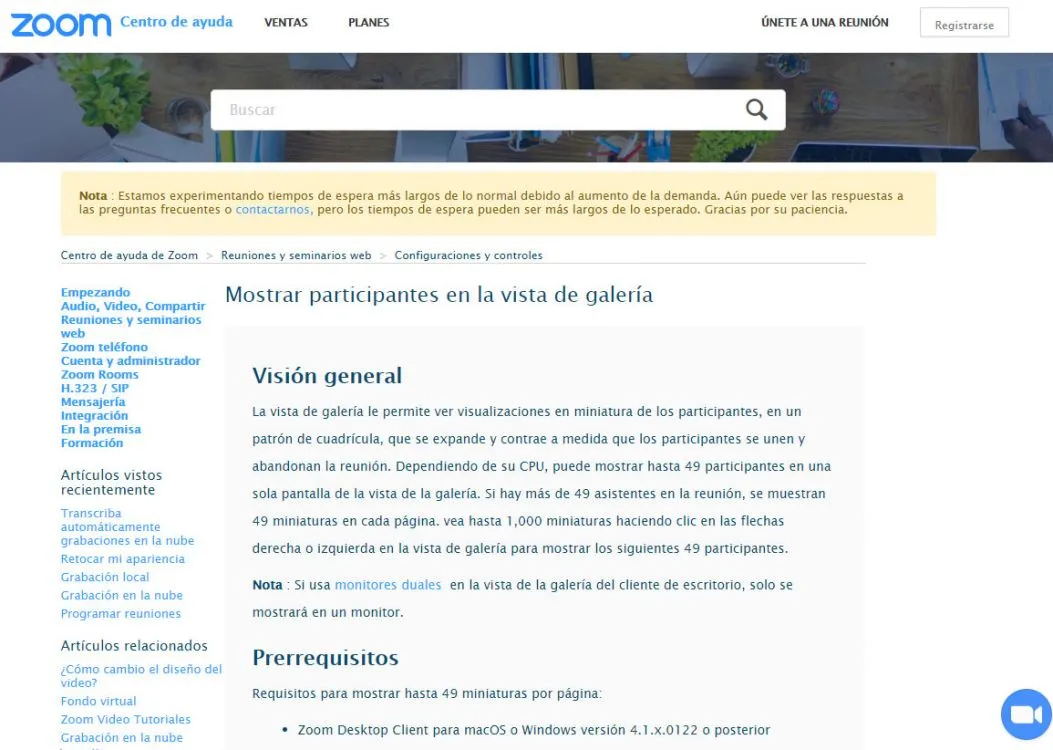
Allows the user to view up to 100 participants at the same time
With the Zoom mobile app on Android and iOS, you can start or join a meeting. By default, the Zoom mobile app displays the active speaker view. If one or more participants join the meeting, you'll see a video thumbnail in the bottom right corner. You can view the video of up to four participants at the same time.
If you want to view 100 people, you will need the Zoom desktop client for macOS or Windows. Once you have the desktop app installed on your computer, you need to go to Settings and click on Video to display the video settings page. Then, enable the option "Show up to 100 participants per screen in Gallery View".
To understand how to enter gallery view, click here: https://support.zoom.us/hc/en-us/articles/360000005883-Displaying-participants-in-gallery-view
Zoom to share screen and use pause
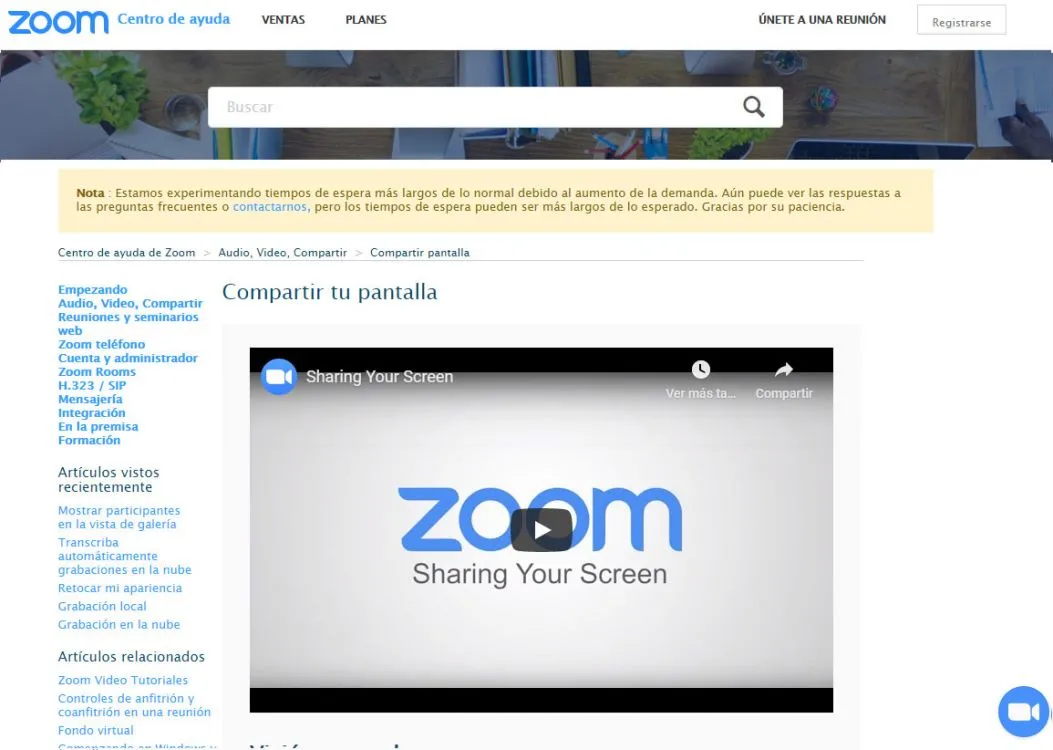
You can pause and share the same video on multiple screens
Did you know that you can not only share your screen (smartphone and desktop) but also pause your screen sharing? Simply press Pause Share when you don't want your meeting participants to see you playing with your presentation slides.
Learn more here: https://support.zoom.us/hc/en-us/articles/201362153-Sharing-your-screen
Share and annotate on mobile devices
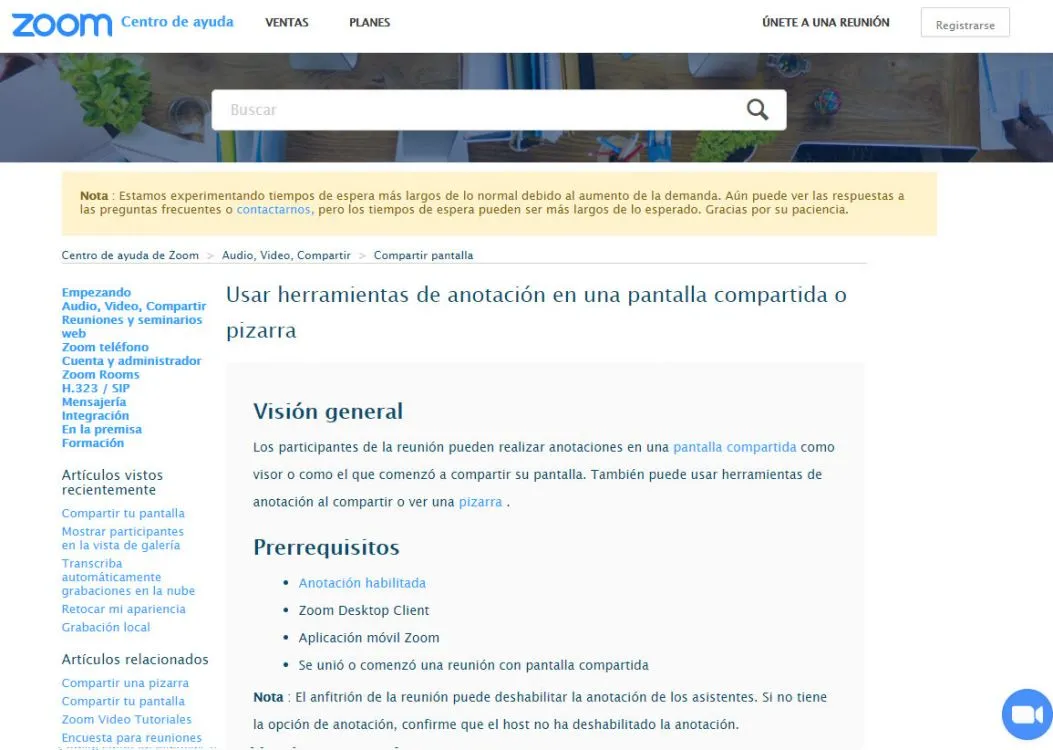
Share files directly from your phone while you're in the meeting and use the whiteboard feature on your phone by writing comments with your finger.
You can share files directly from your phone while you're in the meeting and use the whiteboard feature on your phone by writing comments with your finger. To annotate while viewing someone else's shared screen, select View options at the top of the Zoom window, and then choose Annotate. A toolbar will appear with all your annotation options, such as text, drawing, arrow, etc.
To use it correctly, read the information in the following link: https://support.zoom.us/hc/en-us/articles/115005706806-Using-annotation-tools-on-a-shared-screen-or-whiteboard
Zoom keyboard shortcuts
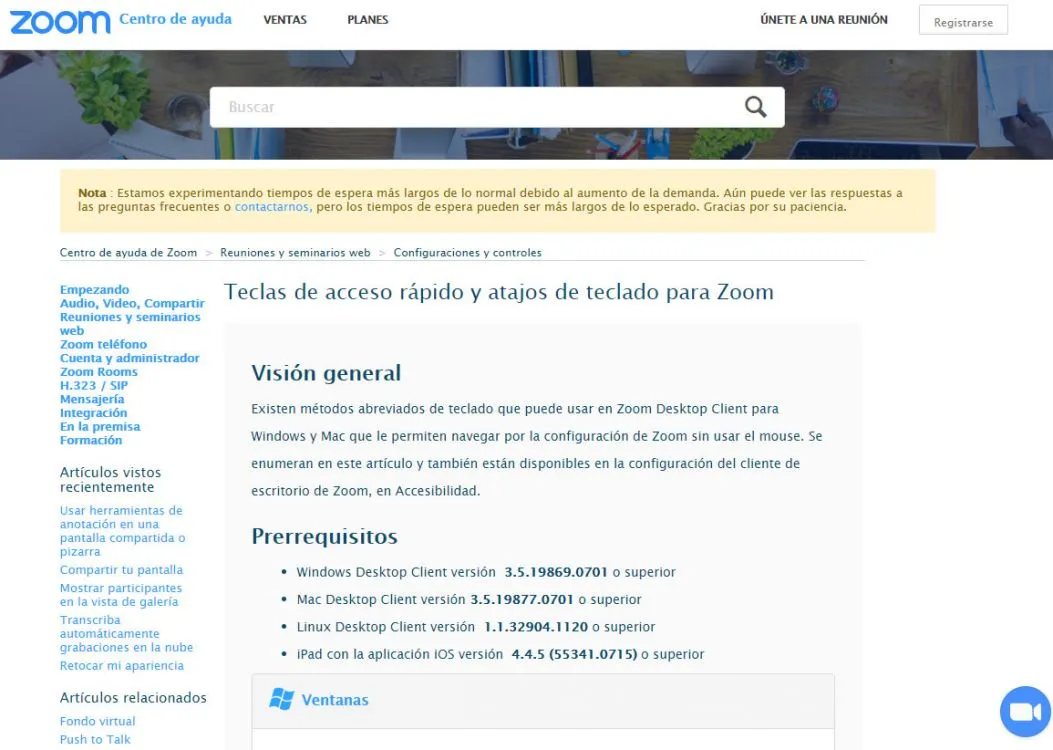
Use shortcut keys during meetings to access features
Multiple shortcut keys can be used during Zoom meetings to easily access features or change settings. These include a multitude of things, but our favorites are:
- Alt + Aor Command (⌘) + Shift + A: Mute/unmute audio
- Alt + M or Command (⌘) + Control + M: mute/unmute audio for everyone except the host
- Alt + S or Command (⌘) + Control + S:Start screen sharing
- Alt + R or Command (⌘) + Shift + R : Start / stop local recording
- Alt + C or Command (⌘) + Shift + C : Start / stop cloud recording
- Alt + P or Command (⌘) + Shift + P : Pause or resume recording
- Alt + F1 or Command (⌘) + Shift + W: Switch to active speaker view in a video meeting
For more information, go here: https://support.zoom.us/hc/en-us/articles/205683899-Hot-Keys-and-Keyboard-Shortcuts-for-Zoom
Updated on: 04/04/2020 00:00:00
Source of Information: Pocket-lint

Sistemas a medida y Automatizaciones
Desarrollamos sistemas a medida que automatizan procesos, mejoran la gestión y te permiten escalar tu negocio con soluciones ágiles y flexibles.