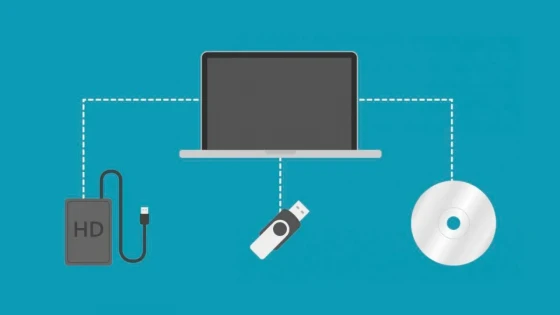
It's surprising that few people take seriously the simple act of backing up their data. There are many reasons to back up your data and by backing up your data you can also clean and put your PC in order or computer. The great advantage is that there are free and easy ways to make backup copies of your data that will help you stay safe.
Here we leave you several tips so that you can make a quick backup of your most important files. We'll also give you options for creating system backups of your entire PC or laptop, so that if your hard drive fails, you can restore it exactly to the way it was.
We'll also give you several tips on how to back up mobile devices, as much of the data we generate these days is on our phones and tablets.
What type of backup do you need?
There are a variety of backup styles, so here's what you need. We break down the main ones. Although you will surely choose one of these options, it is advisable to use multiple techniques and create multiple backups. This is to avoid a double disaster, as you might find that the only backup you created is corrupted or didn't cover what you thought.
Backup to an external hard drive
This is the easiest way to back up your PC files. Simply plug in a USB hard drive or flash drive and use Windows Explorer (File Explorer in Windows 8.1 and 10) to copy files from your computer to the removable drive.
It's completely manual, but if you set a reminder to do it once a month and leave it copying while you're doing other things, it really doesn't require much effort. Plus, once the drive is backed up and unplugged, it's safe from ransomware attacks.
For a more automatic option, try using the built-in File History feature in Windows 10, or Windows Backup and Restore in Windows 7.
Another option is a NAS drive. This consists of a hard drive that is connected to your router instead of through a USB port. This can be better because it's accessible to all the computers in your home (including phones and tablets) and because you can buy models with multiple internal hard drives, so if one fails, there's still another copy of your files on another.
Cloud Backup
Dropbox, OneDrive, Google Drive, pCloud, and many other cloud storage services make it super easy to back up your files, and the free storage offered when you you register, it may be enough. If not, you can pay a reasonable monthly or annual fee to get much more storage.
Just keep in mind that most cloud storage services sync files to a certain folder on your computer. This means that if you delete a file within that folder on your PC, it will also disappear from your online storage. Many services have a recovery feature (like a recycle bin) so you can undo your mistake, but this could be limited to 30 days, so check!
A real benefit of cloud storage is that it creates a copy of your files in a location physically separate from your computers at home. Your files are safe from floods, fires and theft. Cloud storage has many other advantages too, you can access files from virtually any computer with an Internet connection, and you can keep files synchronized across multiple devices.
Typically, everything is encrypted so that no one else can see or access your files, but some services are more focused on security than others.
A complete PC or laptop backup
The methods above back up certain files, but they are not enough for your PC or laptop to laptop are up and running after a hard drive (or SSD) fails, or if your computer is stolen.
Backing up all the files on your hard drive is also known as 'disk imaging' or 'ghost imaging', and you will need specialist software for this. These softwares are not expensive and you can find free versions available.
Acronis True Image is a good software that can cost about US$60 a year to cover three PCs. Existing free options are Macrium Reflect and EasUS Disk Copy (free for hard drives up to 1TB).
How to back up your phone's camera
The best way to automatically back up photos and videos on your phone (or tablet) is by using Google Photos. If you choose the "High quality" option instead of "Original quality", you will get unlimited free storage. That's practically impossible to beat, and you can get the Google Photos app for a wide variety of devices.
For the other things stored on your phone, like contacts, notes, and more, use the options available on the device.
For iPhones, iCloud is a great option, and 5GB might be enough free space, but if it's not, it's only $0.99 a month to get 50GB. On Android, everything is automatically backed up to Google.
With these options, you have no excuse not to back up your data immediately, using one or more of these methods to be completely sure that you won't lose your data in the near future.
Updated on: 22/11/2018 00:00:00
Disclaimer: The information presented does not constitute financial, investment, commercial or other advice and is solely the opinion of the writer. By using the information on this site, you agree that we are not responsible for losses, damages or injuries arising from the use or interpretation of the information.

Soporte Web y mantenimiento
Nos encargamos de mantener tu sitio web o sistema actualizados, seguros y funcionando correctamente.