There's nothing wrong with Google's Find My Device, but it's just not as comprehensive as the alternative Samsung offers. Do you have a Samsung phone and have never given it a chance? Here are all the features it has and how they compare to the Google version.
Application Features
How to activate it
First setup screen
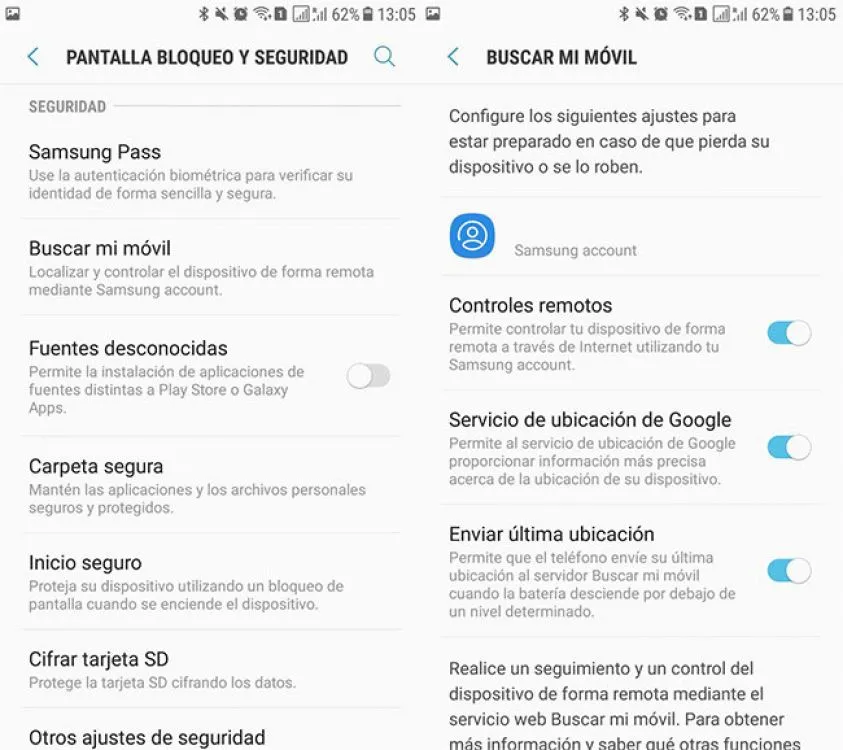
Generally when you set up a Samsung mobile for the first time, you will have to go through the wizard in which you are forced to log in or create a Samsung account. By doing so, you can choose to activate the Find My Mobile service. If you didn't, you can always configure it later.
In Android Settings, go to Lock screen and security and there you will find Find my phone. From within this section you can accept to activate, if you want, the remote controls, the Google location service and if you want the last location to be sent to the service every time your mobile phone has a low battery.
Where is the cell phone
Device location
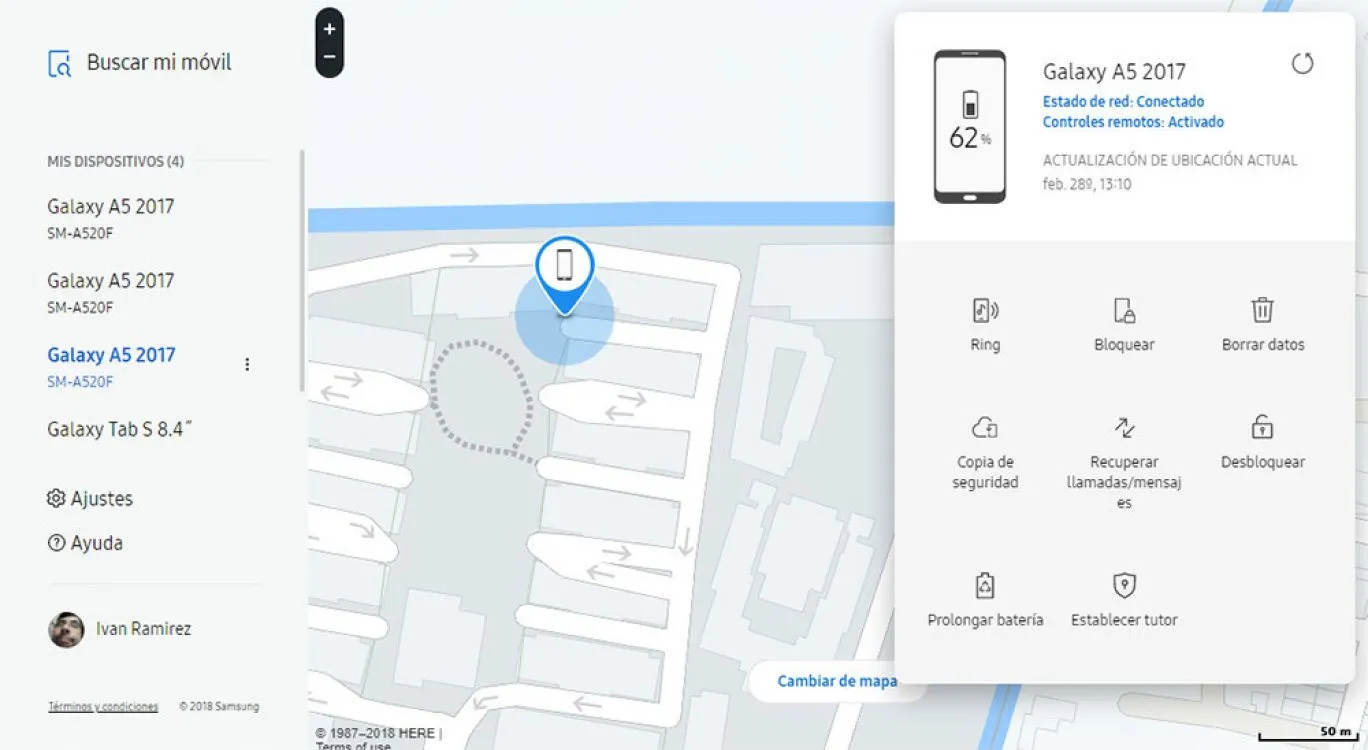
The name itself indicates that the main function of Find My Mobile is... well, to find your mobile. To do this you must open the service website and log in with the same Samsung account that is configured on the phone.
If you have more than one device, you can switch between them from the sidebar. After clicking on one of the phones, it takes a few seconds to get the location and then shows it on the map. The window on the right also shows the battery percentage and whether it is connected to the network (although it does not say the name of the WiFi network as in Find my device).
Another curious fact
A curious fact is that from the menu next to the name of the device you can obtain the IMEI Informationof the phone, ideal if you forgot to write it down at the time and now you suspect that your mobile has been stolen. As we already saw, you will need the IMEI to report the theft and ask your operator to block it.
make it ring
Application options
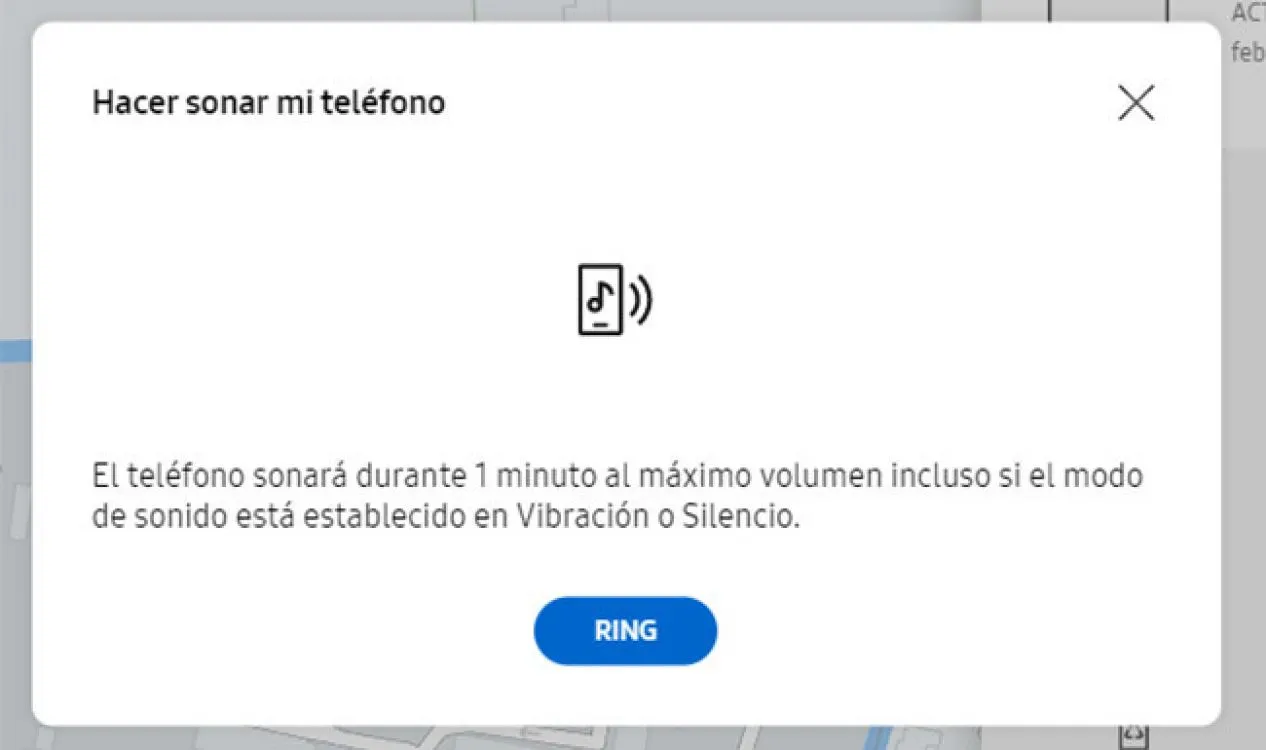
Like the Google variant, Samsung's Find My Mobile can also play a sound at full volume on the mobile, even if it is in silent or vibrate mode, ideal for when you know it is somewhere but no matter how hard you search, you can't find it.
A curious difference is that the phone shows a warning screen on its screen saying that "this phone has been lost." When you ring the sound from Find my device, only a notification is displayed that is barely visible.
Both the Google and Samsung variants allow you to lock the mobile remotely, although there are certain differences. The Google variant simply locks the phone using a PIN or password, but the Samsung one goes a little further.
The screen is locked using a PIN, yes, but the use of Samsung Pay is also completely blocked (just in case) and the shutdown is blocked, which is a very interesting function as it is probably the first reflex of a thief. There will be ways to bypass this lock, but at least it will make it a little more difficult.
You can set a PIN code and an emergency phone number so that the good Samaritan soul who found your cell phone can call you to get it back. Finally, you can add a message that will be displayed on the device.
Delete the data
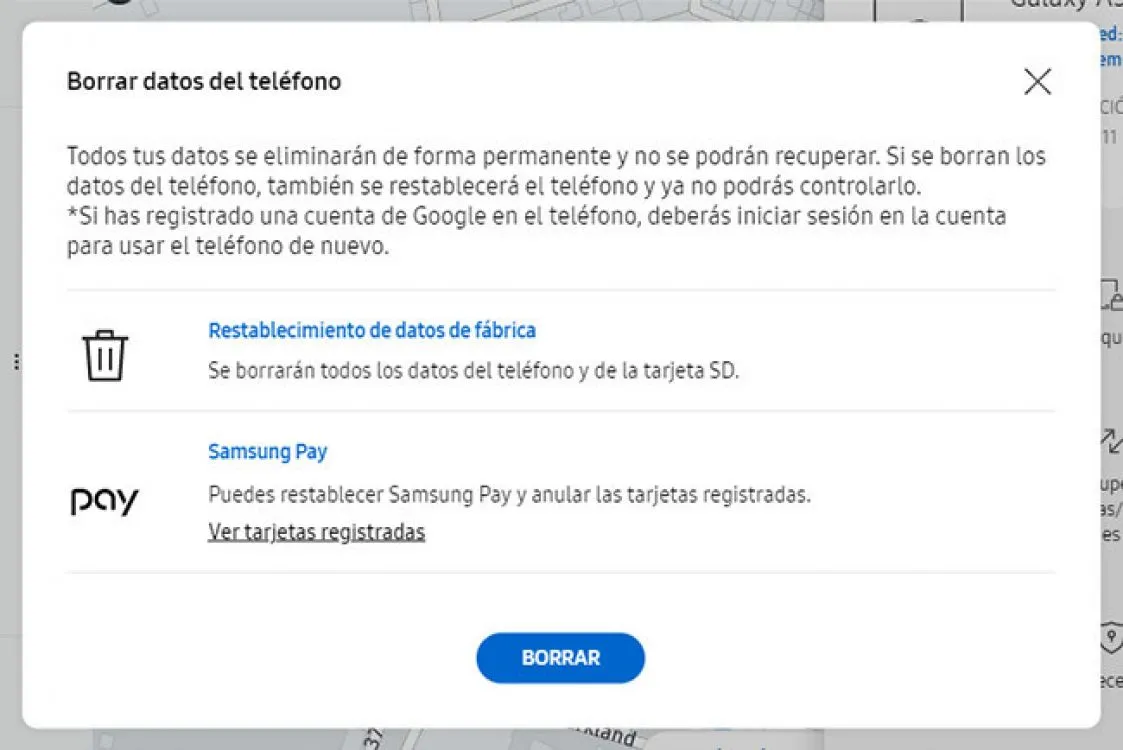
Vital importance to avoid losing important data
Deleting remote data from Find My Mobile is practically the same as using Google: everything will be deleted, the phone will be reset and therefore you will no longer be able to control it remotely. The only difference is that, before doing so, you can check which cards you had registered with Samsung Pay and cancel them.
Make a backup
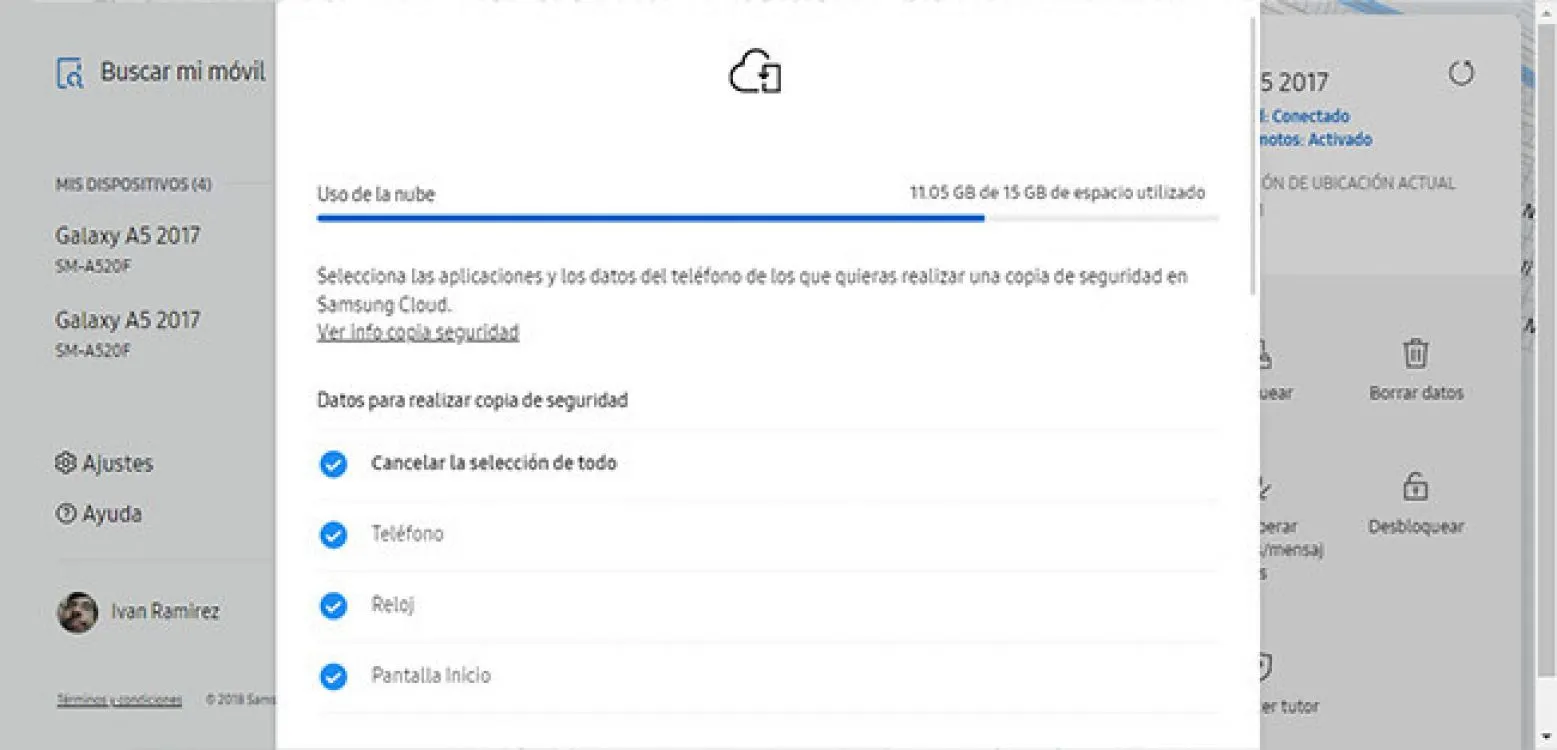
It serves to avoid losing important data and/or conversations
An exclusive function present in Find My Mobile is to back up your mobile data to the Samsung cloud. If you've lost your phone, you may at least be able to recover your data by requesting a backup remotely.
For now Google refuses to have a proper backup system, so it's no surprise that Find My Device lacks this feature.
Look who has called or written to you
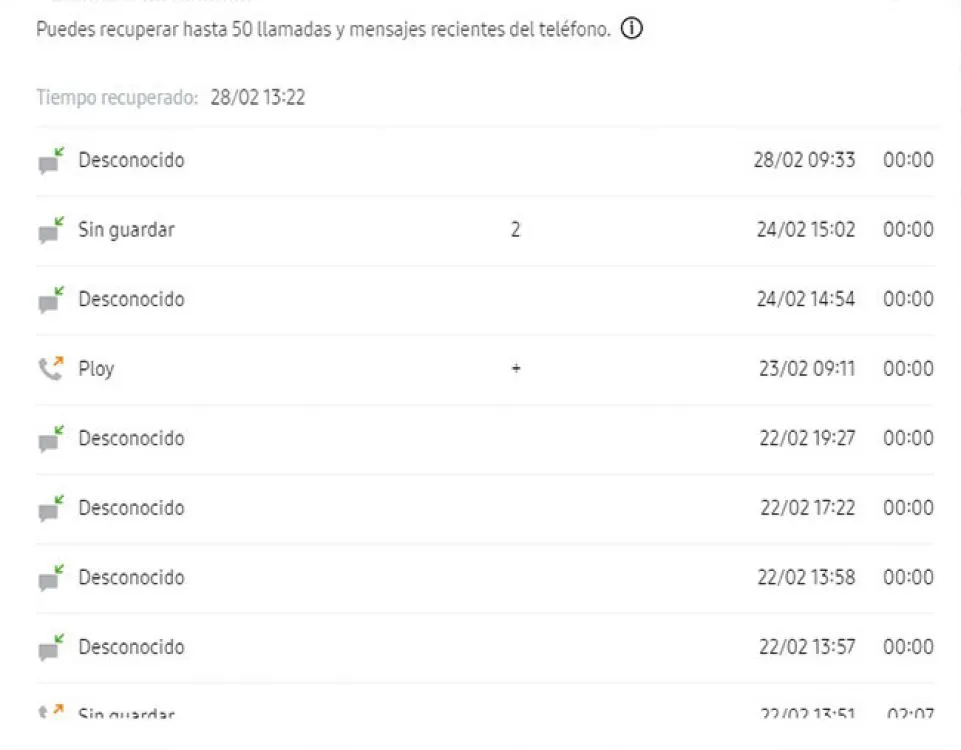
Shows the most recent call entries
Another exclusive function is the ability to view the call and SMS log. The 50 most recent entries are displayed showing sender, phone numbers, time it happened, and duration (for calls). You cannot see the content of the messages.
If you were thinking of using this function to spy on your partner, you should know that the mobile in question receives a notification warning that the call record has been sent.
Unlock your phone if you don't remember your PIN
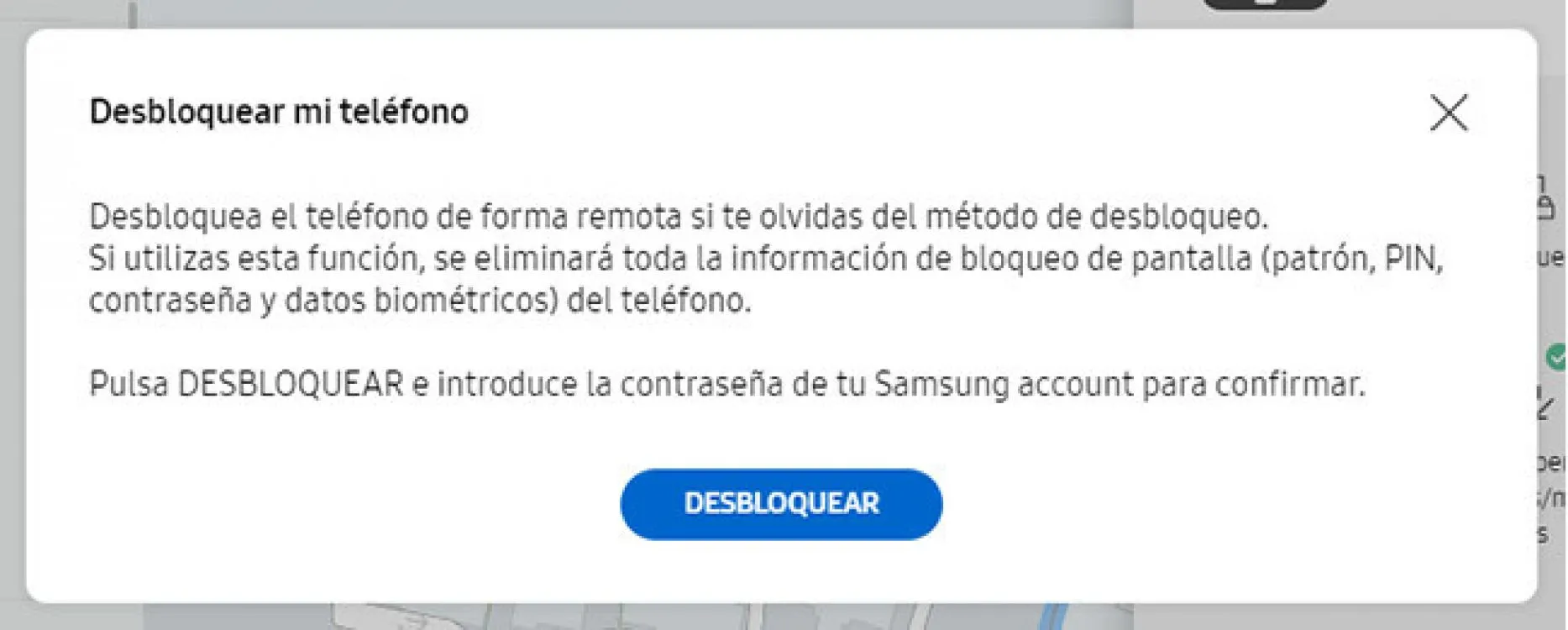
In case you forget your PIN
This function is not so much for cases in which you have lost or had your mobile phone stolen, but rather when you have it in front of you but you don't remember the PIN. You can remove the unlock information from the web so you can access your phone again.
Save battery
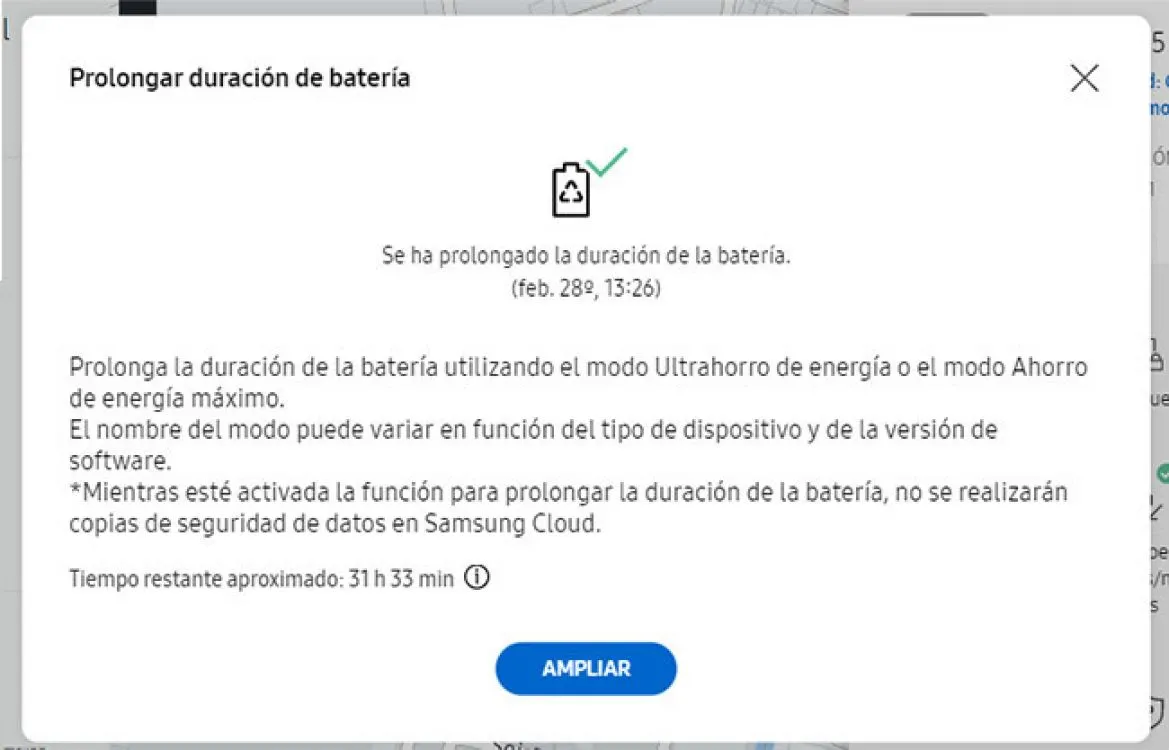
You can activate Ultra Energy Saving Mode from the web
If you have lost your cell phone and are hoping to get it back, you will need it to stay alive so you can make it ring when you are in the vicinity. To make sure your battery lasts as long as possible, you can activate Ultra Saving Mode from the web, which radically increases battery usage in exchange for disabling many applications, slowing down, and switching to a dark mode.
Add guardians or tutors
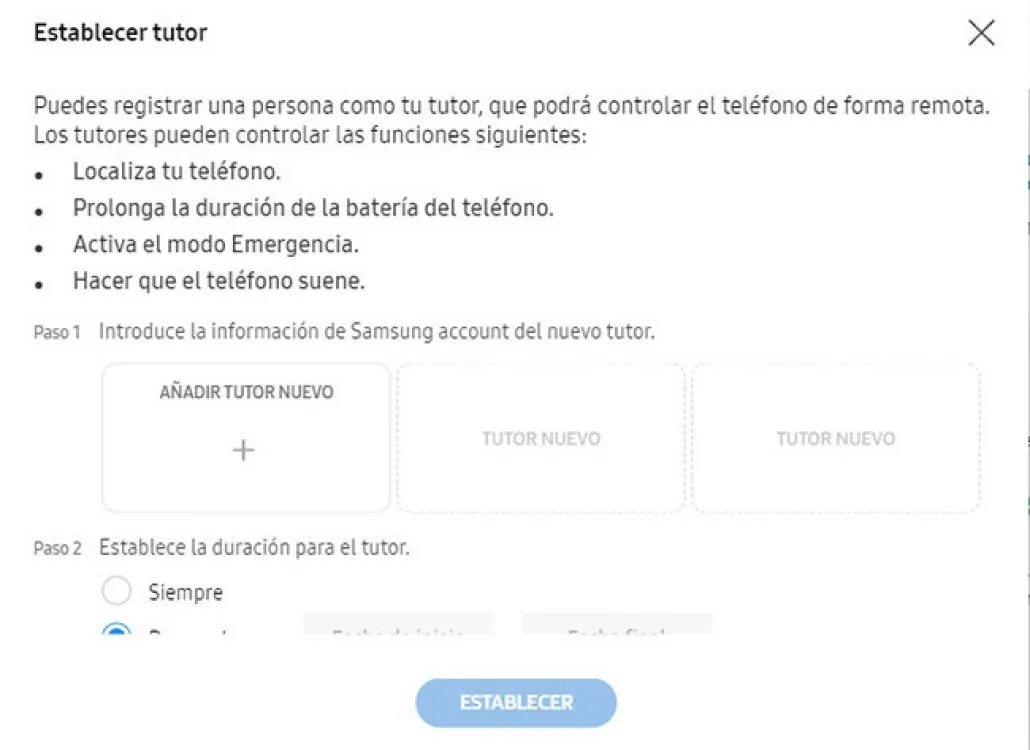
Guardians
Finally, it is possible to add guardians or guardians to a mobile so that other people can locate the phone, activate emergency mode, make the phone ring or activate power saving mode. Each tutor needs to have their own Samsung account, and it is possible to establish them for an indefinite period or for a specific period.
Updated on: 11/10/2018 00:00:00
Disclaimer: The information presented does not constitute financial, investment, commercial or other advice and is solely the opinion of the writer. By using the information on this site, you agree that we are not responsible for losses, damages or injuries arising from the use or interpretation of the information.

Soporte Web y mantenimiento
Nos encargamos de mantener tu sitio web o sistema actualizados, seguros y funcionando correctamente.